This section details the trigger plugins which are included with JobServer.NET when it is initially installed. Additional triggers may become available as downloadable add-ons or added in future updates.
Scheduler Trigger
The scheduler trigger is used when a specific job needs to be started at a particular date and time and may have a variety of conditions to which the job should recur. This recurring pattern can be indefinite or limited to a certain window per period or in total. We will cover a variety of examples in this section due to the flexibility of the JobServer.NET scheduling engine. The first thing to note is that there are multiple types of recurring options that vary based on the type of recurrence it is. You see this reflected in the fact that until you specify a type of recurrence, there are no visible options yet when editing a new trigger. So, we will review each type here.
More Than Once A Day
The more than once a day recurrence type is used when you have a job that needs to run multiple times during a day but can either be every day or only on certain days of the week. We are first going to skip over the first option for Skip Missed Execution Times and come back to that a little later. All the options for this are completely contained by the Start Date and an Ending if one is set. The start date defaults to the current date for a new job definition but can be set into the future if a job should not begin until a later date. The default for an ending date is the Never option, which of course means the job will run indefinitely. The other options allow you to provide a specific date they will run through, as well as an option that allows the job to run only a specific number of iterations. Once an ending is reached, then the job will no longer become active, unless you modify the schedule to change the starting date to be in the future.
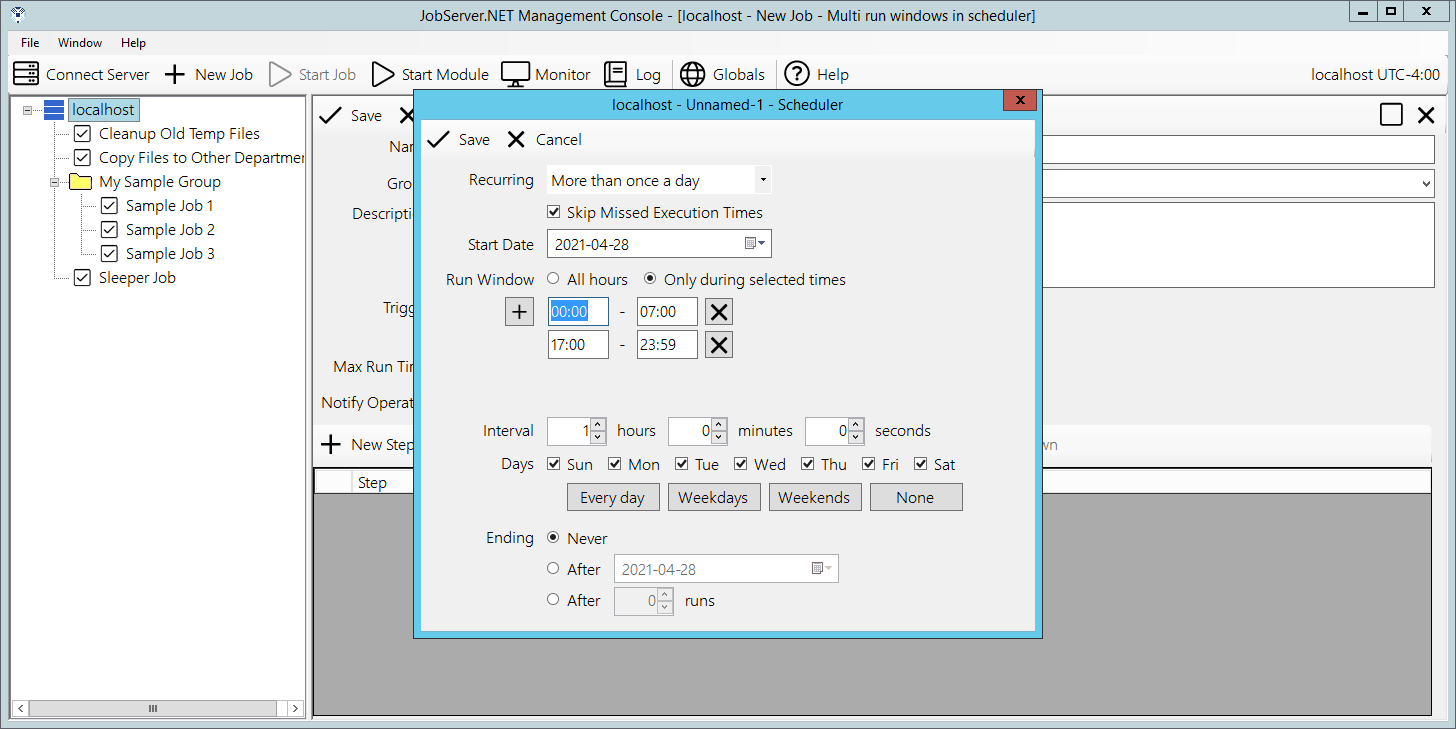
The default option for Run Window is All Hours, or in other words the run windows is the entire day. If you want to constrain the job to run only within one, or more time-windows per day, then you can select the Only during selected times option. Once you choose this option, you can define one or more time-windows per day that the job can be active. An example for using this would be if you needed to run a job every hour except during normal office hours. In this case you might define a window from 00:00 to 07:00, and another from 17:00 to 23:59. This would define the time-windows that job can execute, thus excluding the time between these from 07:00 to 17:00 when you might have people in your office. Then you specify the Interval at which you want the schedule to repeat within the defined window(s). For example, to run hourly, set the Hours interval to 1.
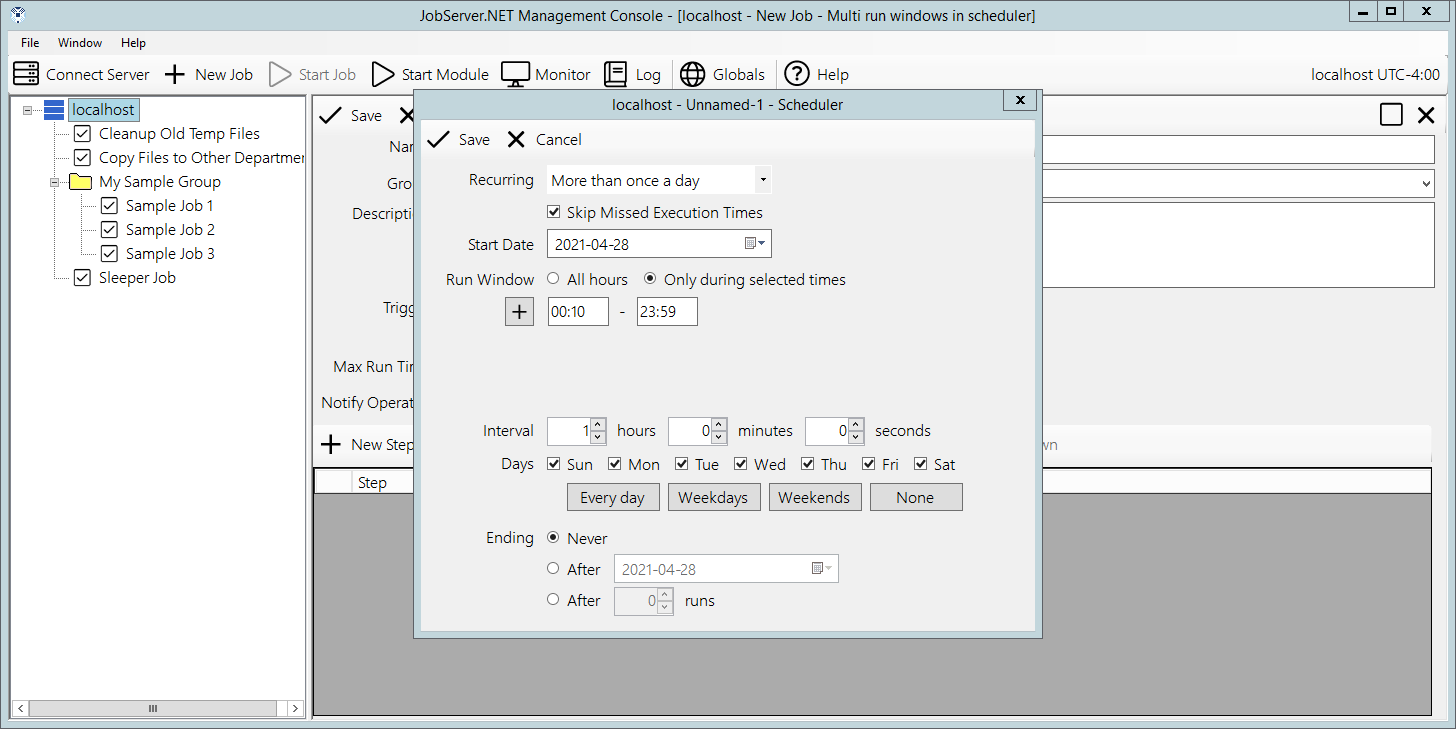
Another aspect to defining run windows is that the starting time for each window becomes the anchoring time of day that the next runtime is calculated from. For example, if you wanted a job definition to run every hour, but you only want it to execute at 10 minutes after the hour, then define the time window for your schedule to align to this. For a job that would run all day long at 10 minutes after the hour, just define a time window of 00:10 to 23:59. Then you will have a job that executes at 00:10, 01:10, 02:10, 03:10, and so on up to 23:10.
This concept of the anchoring time applies to the Interval no matter if you set it to whole hours or not. For example, if instead of running hourly, you want the job to execute every 15 minutes, but instead set a time window of 7:10 to 23:59, then you will see job executions occur at 07:10, 07:25, 07:40, 07:55, 08:10, 08:25, and so on. When defining an interval, you can combine the options for Hours, Minutes and Seconds if needed. The JobServer.NET engine will calculate the correct run times to fit within and anchored by the start date and run window(s) you have defined.
The Days option defaults to allowing the job to execute every day of the week. If the job only needs to run on a specific day of the week, then unchecking all the days except the desired day of the week will limit the execution of the job to only those days. You can select any combination of the days of the week and there are shortcut buttons for quickly selecting Every Day, only Weekdays, only Weekends, and deselecting all days.
All these combinations allow for a very flexible way to schedule jobs that occur multiple times through each or certain days. Now that you have seen how these available options can be used together to create a schedule that suits your job, we will go back to that option we jumped over at the start, the Skip Missed Execution Times option. This skip option is enabled by default and for most jobs this is likely going to be the preferred method of working for most jobs. However, there may be an occasion where you may have a complex custom module, or you use the SQL Execute module to run a SQL database procedure that modifies the current state of something, and it depends on running the specific number of times per day that the schedule you have defined is set up for. In cases like this, you can turn off the skip option, and if JobServer.NET detects that a defined job did not execute at a time it should have according to its schedule, this will trigger it to be executed the required number of times to “catch up” to the most current run time.
We can look at an example to see how this works. Let us assume you have defined a job that executes hourly all day long exactly on the hour. This job will execute 24 times every day. And this example job updates internal counters and other statistics that rely on the results of the previous time it was run. Now let us says you must schedule some time to take your machine offline for some needed maintenance, and it winds up being powered off over a little over an hour causing it to miss the scheduled time it would have normally run at. If your machine was offline before 14:00 and through 15:00, the JobServer.NET scheduling engine can detect these missed run times. If the skip option is turned off (unchecked), then the job will be run two times to catch back up to the current schedule as soon as it is able to.
Once A Day
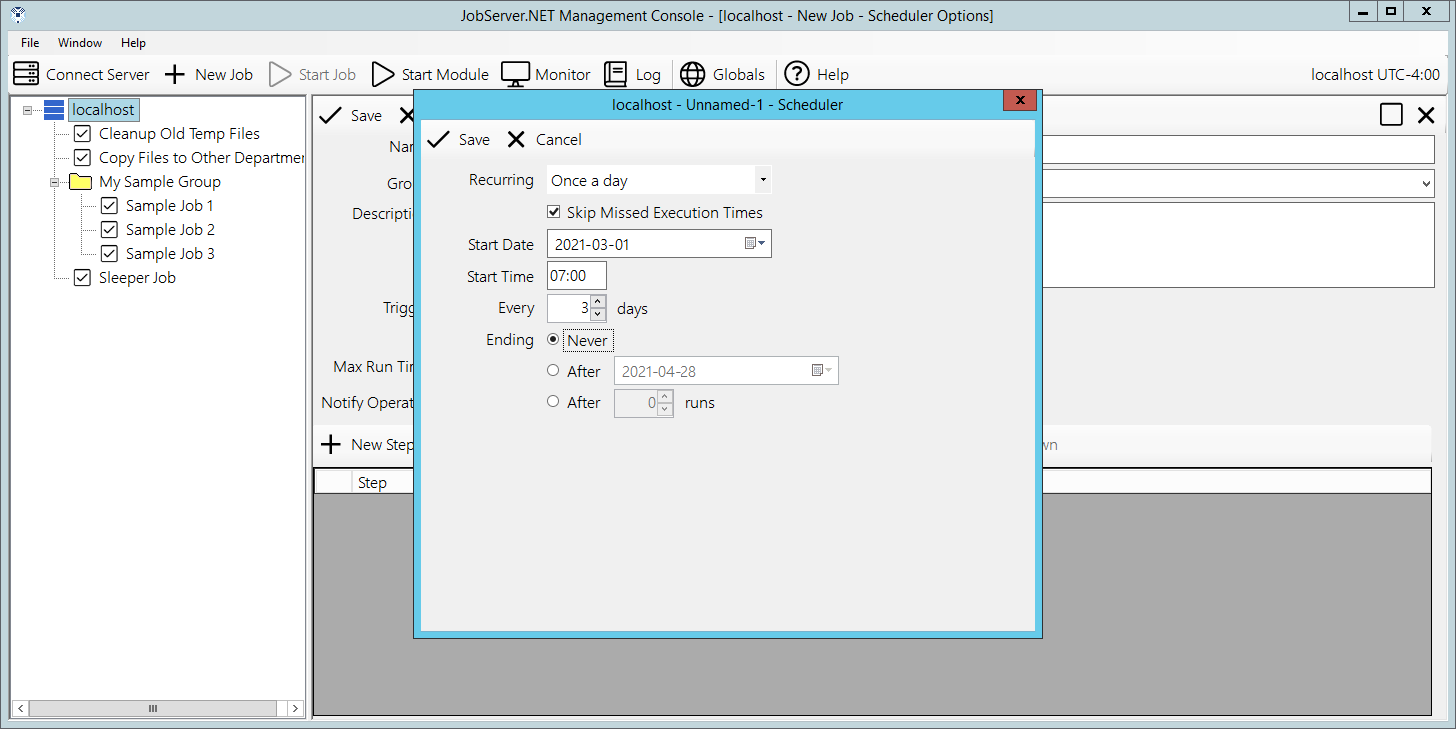
The once-a-day recurrence type is used when you have a job that needs to run only one time per day, either every day or every few days. Thus, you will notice that the number of additional settings that are available under this option are much simpler. Skip Missed Execution Times is the first option as it is with all the scheduler-based triggers. This option works the same way for all types of recurrence and therefore behaves in the same fashion as described in the previous section.
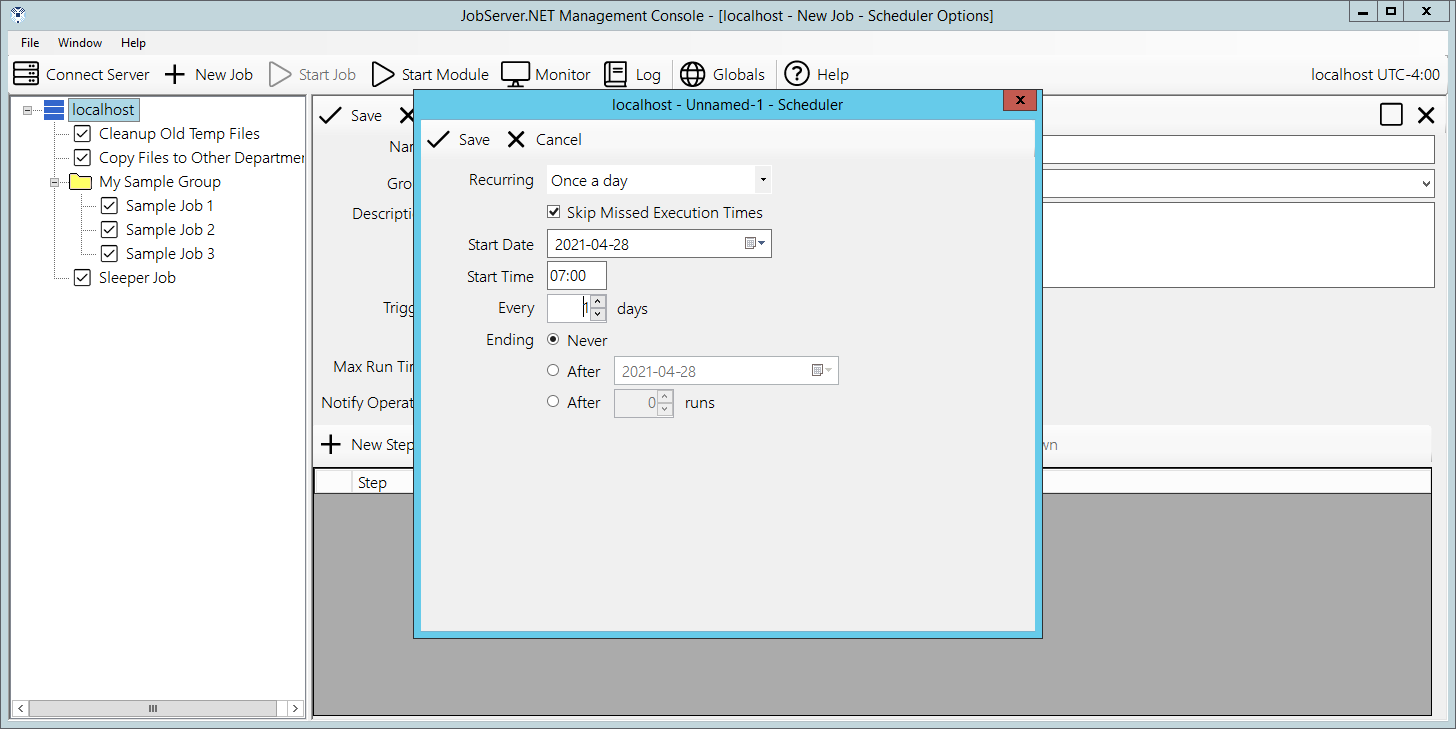
The Start Date and Start Time fields specify the starting date and time as would be expected. Then the next field is the repeating interval option which appears as the Every X Days option. With this set as the default value of 1, the trigger will fire every day at the specified time. When you set this option to a different value, then you want to keep aware of the fact that the starting date and time serves as the anchoring point for when the next run will be triggered.
Finally, the Ending option also is present here as was described in the previous section. This also is true of all the various recurrence types. An example of the once-a-day recurrence type might have us set the Start Time to 07:00 with all the other defaults. This would give us a job that run at 07:00 exactly, every single day.
For another variation, change Start Date to 2021-03-01 and the field Every 1 Days, to a value of Every 3 Days. Now this job will execute at 07:00 on each of the days it should run. But note that with this specified date, the anchoring of the starting date and time means this job will run 2 times on the first week (Monday March 1, and Thursday March 4). Then we will see the job run 3 times the second week (Sunday March 7, Wednesday March 10, and Saturday March 13). And on the third week we see the job run 2 times for this week (Tuesday March 16 and Friday March 19). Then on the fourth week, we see the job will again start on a Monday, March 22. So, in this scenario, the days of the week that the job runs on is based on the anchoring of the Start Date and the number of days it is repeating on.
Weekly
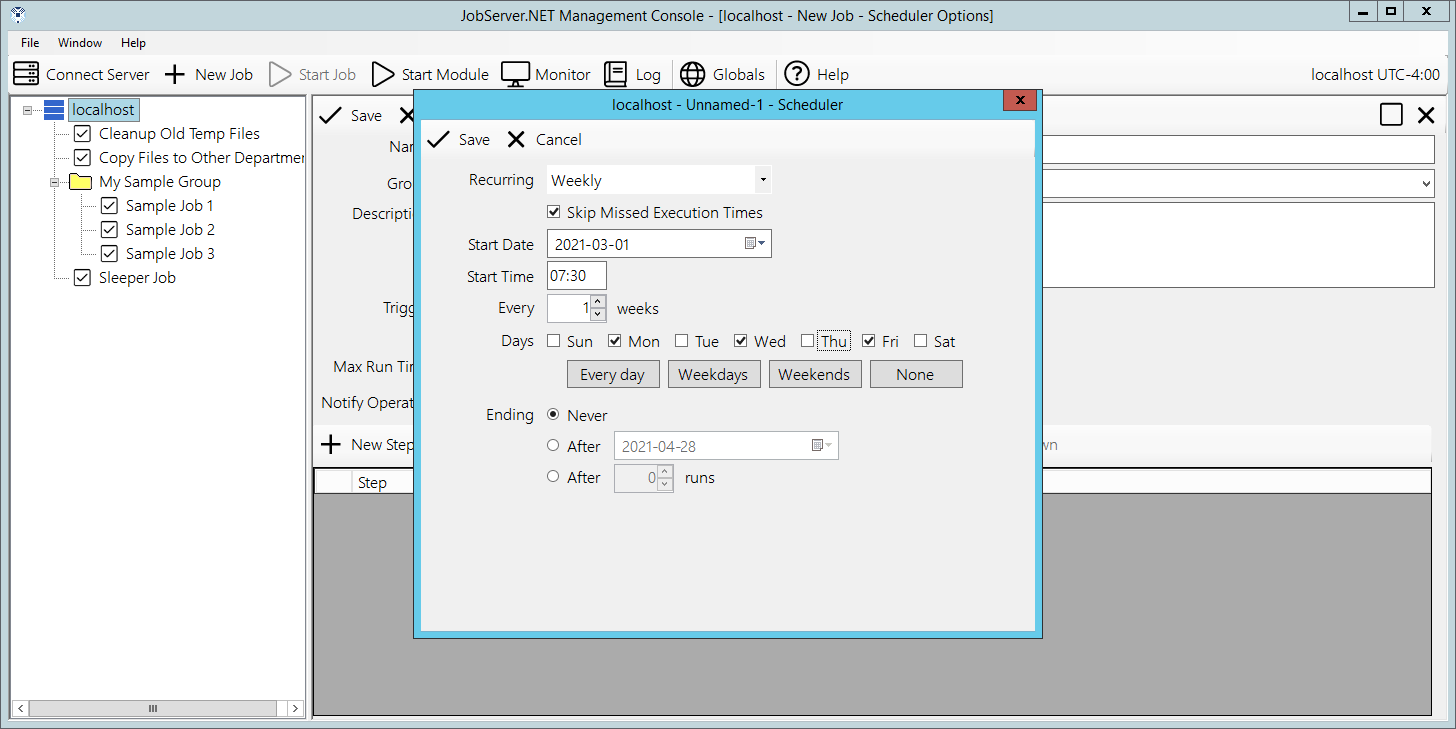
The weekly recurrence type is used when you have a job that needs to run one or more days every week or on an Every X Weeks basis. Or, the weekly recurrence type can also be used when you have a job that needs to run on specific days of the week. As usual, we start with the Skip Missed Execution Times option that was outlined at the start of this section.
Next, we again see the Start Date and Start Time fields to specify the starting date and time. This time we see the repeating interval option appears as Every X Weeks and is based on the number of weeks instead of days as in the once-a-day recurrence. The next field, Days of the Week is what this recurrence type really excels at. Notice how this option has a checkbox for every single day of the week. They normally default to all of them being enabled, but you can toggle any of the off or on in any combination needed. Underneath of them, you see buttons that help quickly set all the days of the week settings to commonly used values, or to quickly select or deselect all the days-of-the-week options.
One example for using this would be to select only the weekdays and use that to trigger the creation of a daily report that goes out to all office workers. Or, select weekends and use that to trigger the creation of weekend promotion emails.
Monthly
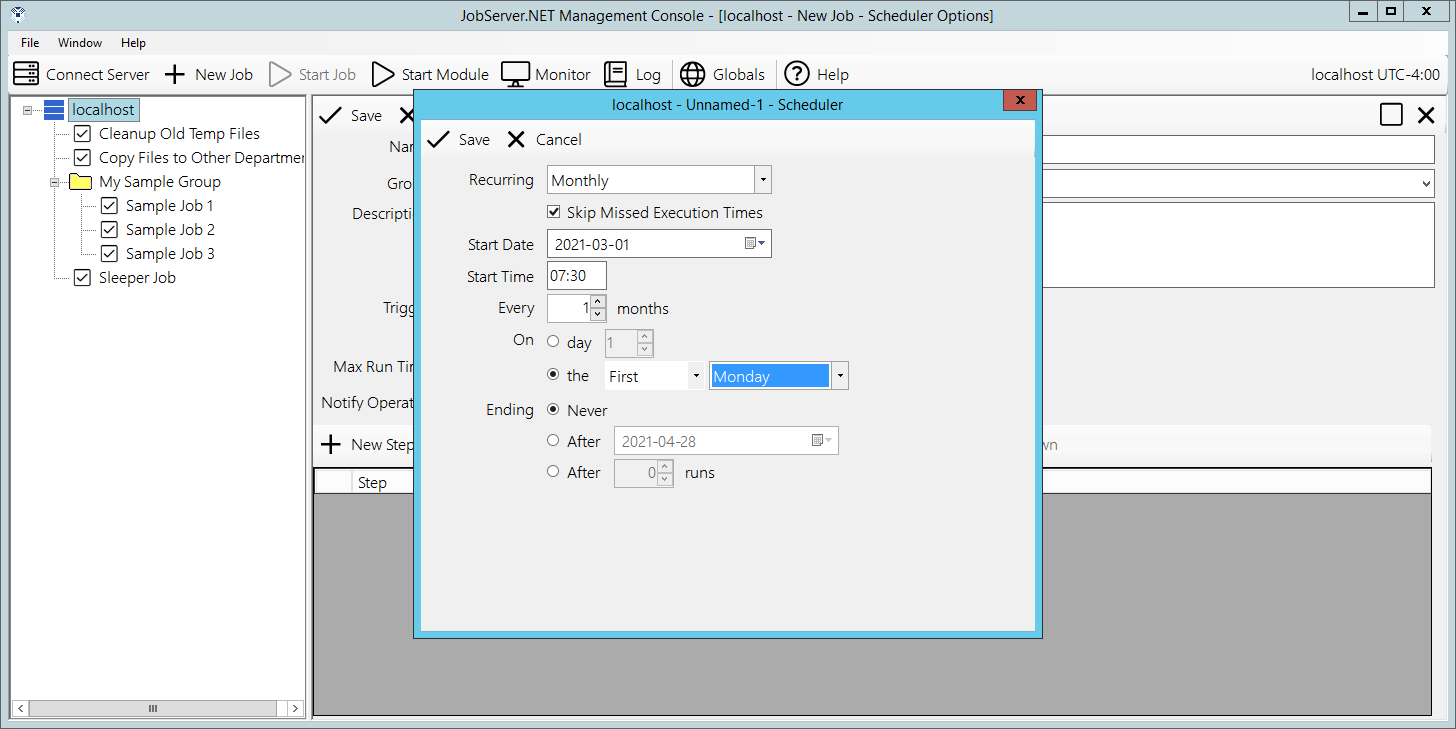
The monthly recurrence type is used when you have a job that needs to run once during the month. The options here allow you to have it run on a specific day of the month, or a relative day within the month. Again, we see the Skip Missed Execution Times as has been detailed in the section at the top. We also see the Start Date and Start Time fields which we should now be familiar with as well as the repeating interval option, now appearing as the Every X Months option.
Now the part that makes the Monthly recurrence type distinct: the On field and its options. The first option for it is the day of the month and this is exactly what it sounds like. When you want the job to start on a specific day of the month, you just put that day in this option. So, putting a value of 5 in this option will give us a job that runs on the 5th day of every month. The second option allows you to select a relative day within the month, providing you a way to specify the First Weekday of the month, Fourth Thursday of the month, Last Weekend of the month, or various other such combinations. Finally, we again see the Ending field options.
Yearly
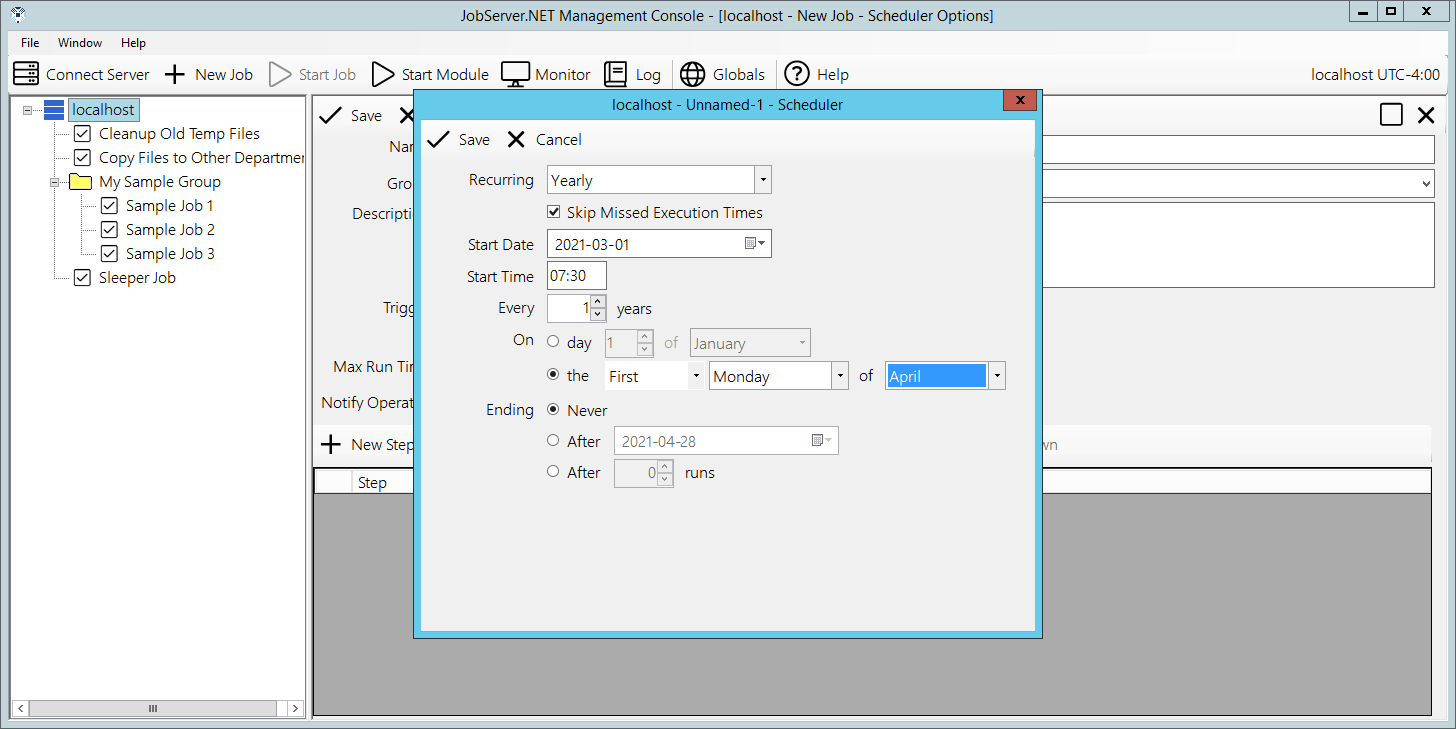
We now reach the last of the recurrence types with the yearly option. This should look familiar as the options are almost identical to the monthly type. The only difference being the option for the relative day is mapped to options within the year, as opposed to within the month as before. So let us look at just that relative day option by changing current option from On Day to On The if not already set. Once you do that you will be able to try the different options within the relative date to see that combinations such as the Second Friday Of June can be selected. Using the combinations of either the specific date or relative day in the year, you would be able to schedule things that might align to certain business processes, such as running a Quarterly Report, or exporting a Year End Inventory Positions file.
CPU Trigger
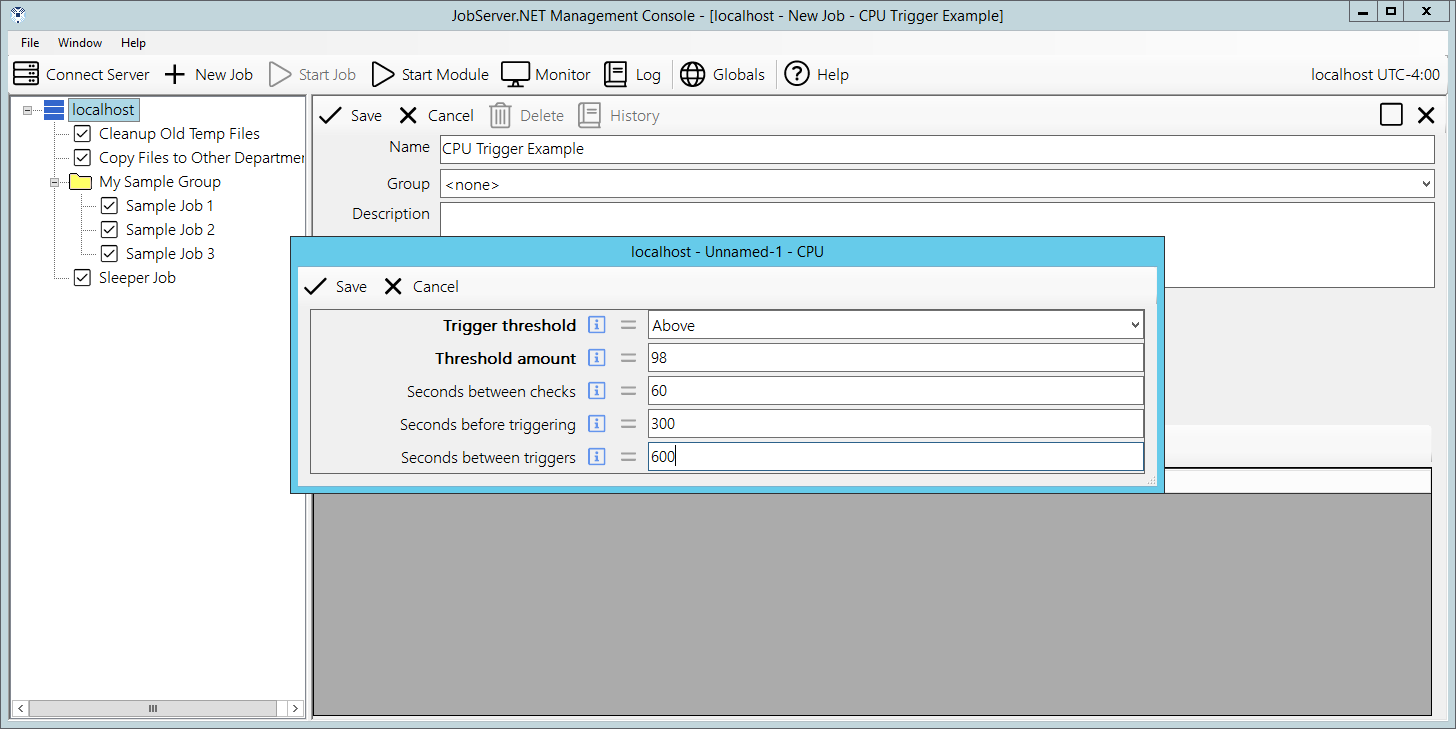
The CPU trigger can be used when a specific job needs to be executed when the amount of aggregated processor activity on the machine has stayed above or below a determined threshold. We configure this trigger using a few options with the first being the Trigger Threshold. The Trigger Threshold can be set to a value of either Above or Below. As might be expected, if we choose the Above value, then the machine will need to maintain processor utilization above the Threshold Amount. And of course, as you may guess, choosing the Below value would mean that the machine will need to maintain processor utilization below the threshold amount. The Threshold Amount is a percentage of aggregated processor utilization.
The option Seconds Between Checks is a value which controls the overall granularity of how soon the trigger may respond to changes in the processor utilization. The minimum or default value for this setting is 5 seconds. The option Seconds Before Triggering controls the period in which the aggregated processor activity must sustain the level of activity above or below the threshold before the trigger will respond. The requirements for this value will vary significantly based on your intended usage. For example, if your server regularly executes many long running jobs which may be processor intensive, then these may cause the trigger to respond prematurely to what you intend. Thus, successful usage of this trigger may require careful planning and tuning of these values.
Finally, the option for Seconds Between Triggers controls how often the trigger responds to the processor activity. Some jobs you may need to have execute every time your machine utilization is above 95 percent. An example might be if you created a custom module to check for one of your processes that is taking longer than it should and can be detected by high processor utilization. Other times you may need to limit the frequency at which this CPU trigger responds. You can do this by setting this to an appropriately high value. An example might be that you do not want to cause the trigger to respond more than once per hour, so you may set this value to 3600 seconds (or 1 hour).
Available Disk Space Trigger
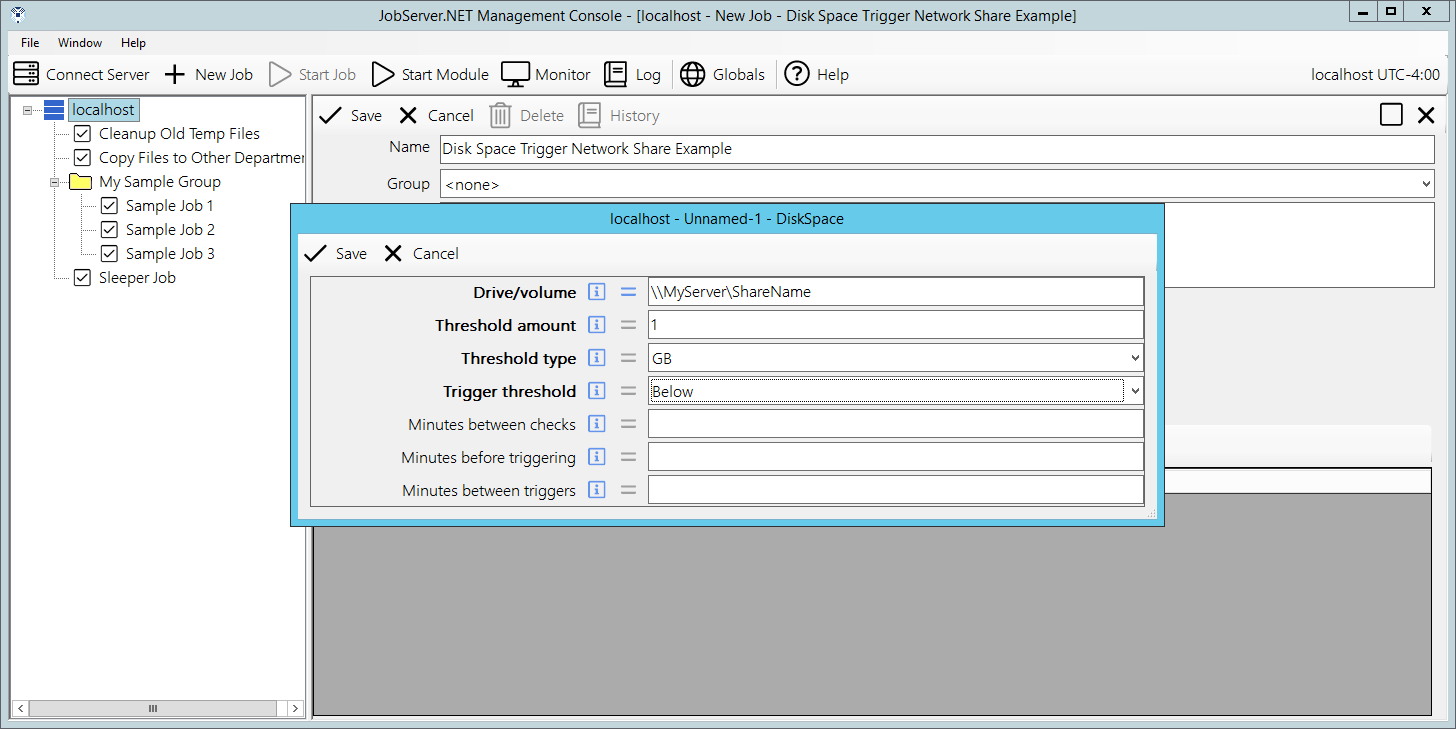
The disk-space trigger can be used when a specific job needs to be executed when the amount of available disk space on a given drive or volume drops below or goes above a determined threshold. The parameter field Drive/Volume allows the specification of a drive or volume name. For locally attached drives on the machine, this would be done by providing a valid drive specification such as C:\ or any other valid local drives. Keep in mind of course, that these would be referring to drives local to the machine running the JobServer.NET service. If you are running the JobServer.NET Manager application on a desktop machine connected to a remote service, then you are specifying the drives on the remote machine.
For specifying a volume available on the network, you should use the UNC path convention such as \\MyServer\ShareName to specify any path that is available on the network. Be certain that the proper permissions are available for JobServer.NET otherwise it will not be able to get access to the network volume. The next two parameter fields work in tandem to define the threshold. The first is the Threshold Amount and this should be a whole number value. This is used with the Threshold Type field which specifies if the amount is either a percentage of the size of the disk or volume. If percentage is used for type, then the value should be limited to a setting from 1 to 100. Otherwise, it defines the scale of the value allowing you to specify the amount as being a whole number of Kilobytes (KB), Megabytes (MB), Gigabytes (GB), Terabytes (TB), Petabytes (PB).
The next parameter is the Trigger Threshold which allows you to choose between triggering on the amount of free space being Above or Below the threshold value specified. The value specified for Minutes Between Checks allows you to control how frequently the available space is monitored. The value for Minutes Before Triggering controls the period which the available disk space must remain beyond the detected threshold before the trigger starts the job. Let us use an example where you have a disk-space trigger defined on a drive where processes might be creating temporary work files and they normally remove them once completed. If the amount of available space crosses the threshold while the process is running and you do not want the trigger to start before the process cleans up its temporary files, then the minutes before triggering setting should be increased to a value that is higher than the expected runtime of the process. If not, then it is possible that the trigger will start the job due to the existence of the temporary working files. Thus, be aware of such situations otherwise you may see unintended jobs running without an obvious reason as to why afterwards.
The last parameter is the Minutes Between Triggers field. This option allows you to control how often the trigger responds to crossing of the defined threshold. Again, if you have other processes that create large enough temporary working files, this option can help you get the desired behavior from the disk-space trigger. The default behavior is the same as setting this to zero. It will trigger on each threshold crossing. Putting a larger value in here can help you filter how frequently you are running jobs when this threshold is being reached on a regular basis.
File Watcher Trigger
After the scheduler trigger, this is the next most popular trigger: it allows you to set up specific drives, folders, and network paths to be monitored for the existence of new or changed files. This makes it possible to set up a job that responds to files being dropped into a certain location on your network or on a local drive folder.
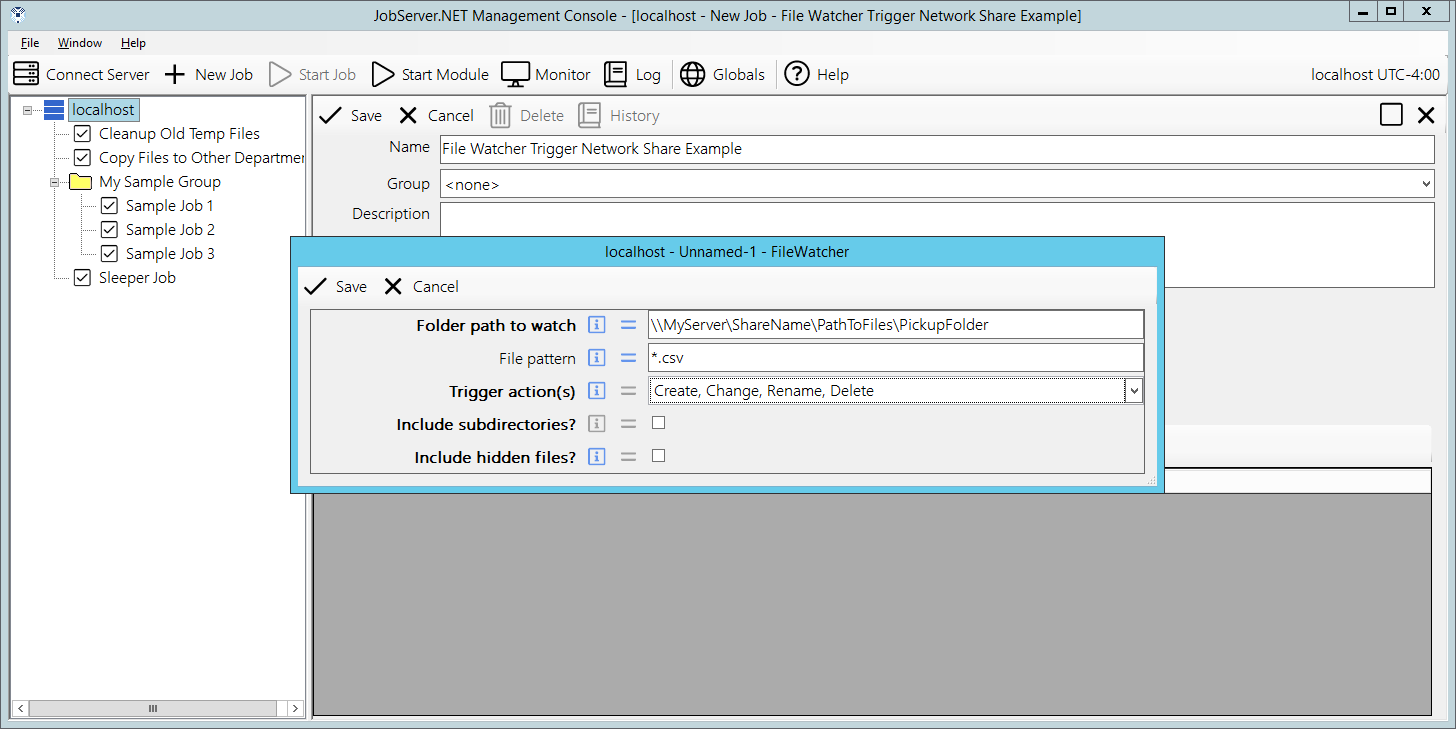
The first parameter is the Folder Path To Watch. This will be the complete local path like C:\MyFiles, or should be a network UNC path like \\MyServer\ShareName\PathToFiles\PickupFolder. Again, it is important to remember that JobServer.NET must have network permissions to any UNC paths.
The next parameter is the File Pattern. If not specified, it is equivalent to *.*, matching all files in the specified path. The file pattern used here must strictly conform to the simple pattern used in Windows Command Line and such, which only supports the use of the question mark and asterisk for wild card characters (i.e., it is not a regular expression). Therefore, to look only for CSV files in a specified folder, you may use a pattern like *.csv for this parameter.
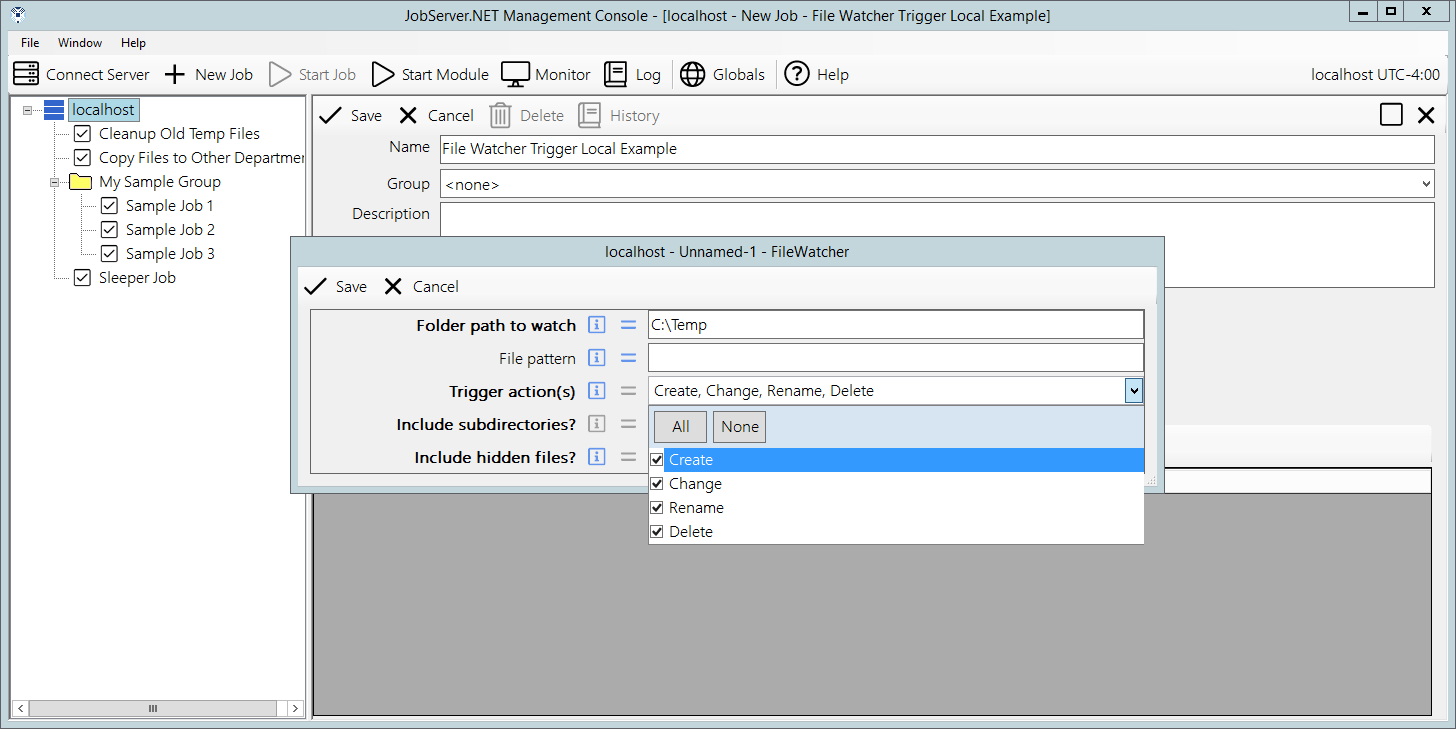
The Trigger Actions parameter provides some control over the files that are picked up by the file-watcher. For most people, simply clicking the All option is enough and the file-watcher will report back all the files it finds in the path. For a finer degree of control, the additional trigger-actions, Create, Change, Rename and Delete can be used to respond to when those specific events happen to files in the path.
The parameter for Include Subfolders will also search the path for any sub-folders located in it. Normally this defaults to unchecked meaning only the files found directly within that topmost specified folder are found. When the subfolders option is enabled, then any number of subfolders deep will be included while watching for eligible files. The last parameter Include Hidden Files can be enabled (checked) if you want the file-watcher to pick up files that have the hidden attribute set. Normally the file-watcher will ignore any hidden files in the path, but this option allows you to override that behavior.
The trigger also defines an output parameter named FileList. The FileList parameter from this trigger is a list of one or more files that is returned by the file-watcher each time it detects any files matching the input parameters. The list of files is always a fully qualified path to the file and multiple files are formatted as one entry per line.
While the screenshot of the above shows the example in the preceding steps, this is what a local file path might look like when configuring a new file watcher trigger.
Ping Trigger
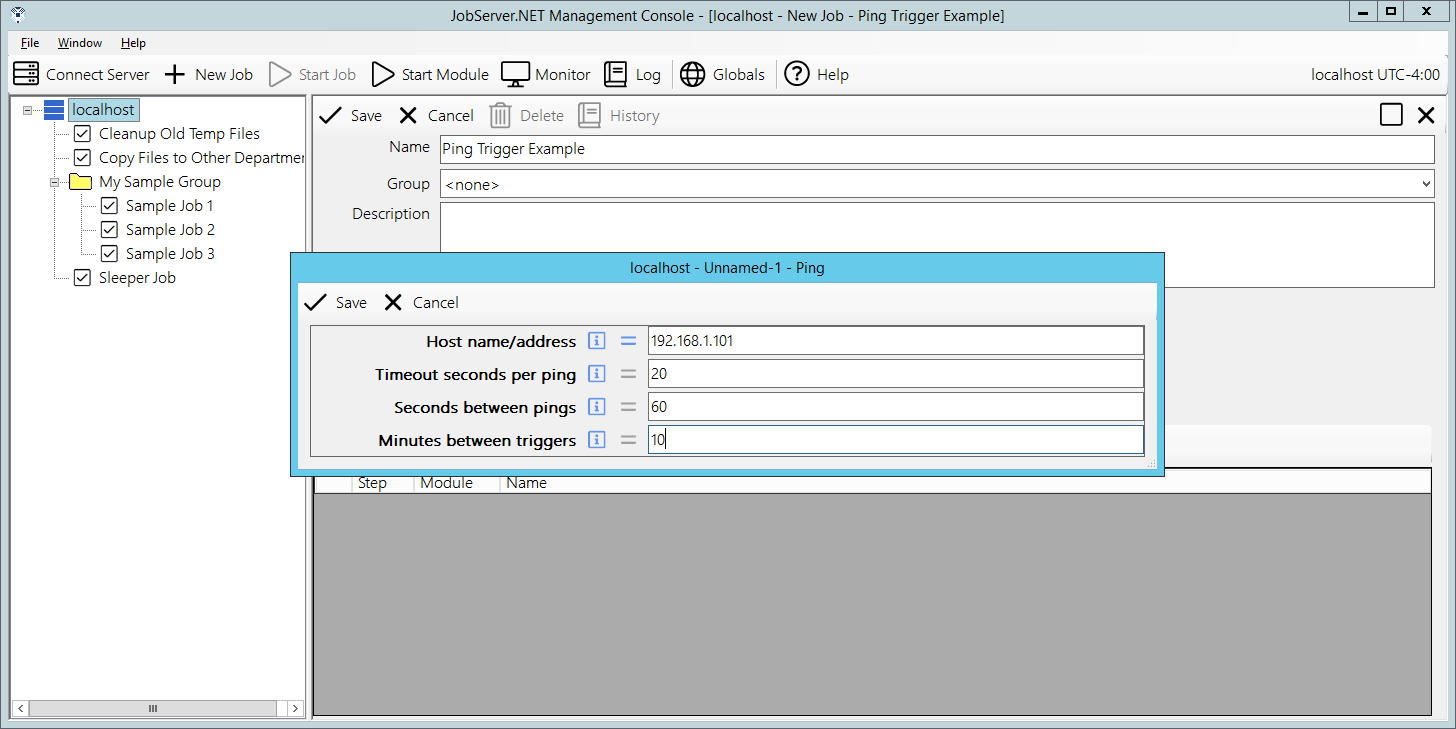
The ping trigger can be used to start a job if a device stops responding to ICMP Ping requests. The first parameter this takes is the Host Name/Address. This should be the fully qualified domain name of the device, or the IP address of the device. The next parameter is Timeout Seconds Per Ping, which defaults to 20 seconds if you do not specify one. This controls how long we should wait until before recognizing an individual ping request as a failure. The parameter Seconds Between Pings defaults to a value of 60 seconds. This controls how frequently individual ping requests are sent to the specified device. And finally, the Minutes Between Triggers parameter will throttle how often this may be re-triggered if the device continues being non-responsive. This defaults to 5 minutes but can be set all the way down to 0 if you wish it to retrigger the job over and over while the device is non-responsive.
RAM Trigger
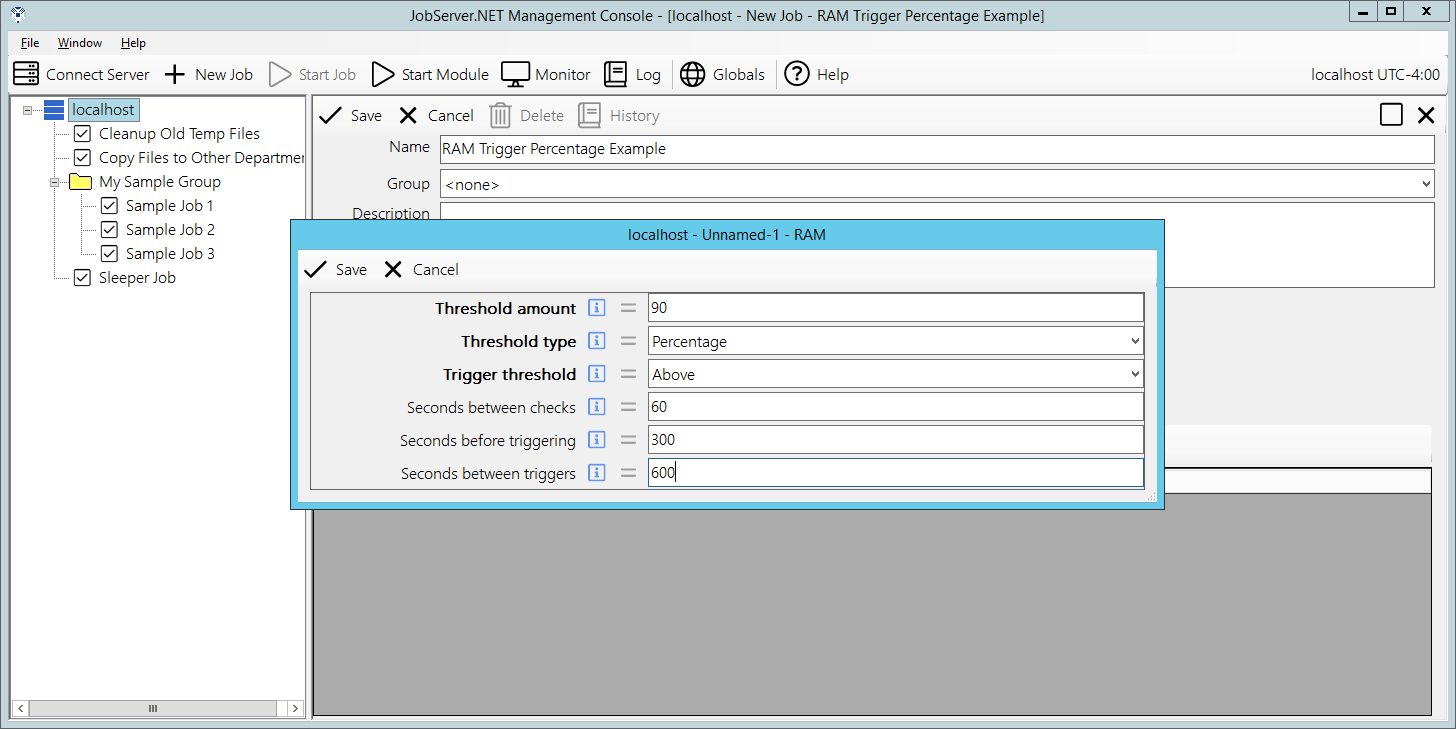
The RAM trigger can be used to start a job if available system memory either drops below a threshold or rises above a threshold. The first parameter, Threshold Amount must be specified as a whole number value. This is used with the Threshold Type field which can specify if the amount is a percentage of total system memory. If percentage is used for type, then the value should be limited to a setting from 1 to 100. Otherwise, it defines the scale of the value allowing you specify the amount as being a whole number of Kilobytes (KB), Megabytes (MB), Gigabytes (GB), Terabytes (TB), Petabytes (PB). The Trigger Threshold parameter defines if we are looking to trigger based on the amount of free memory dropping below the threshold or rising above the threshold.
The option Seconds Between Checks is a value which controls the overall granularity of how soon the trigger may respond to changes in the amount of free memory. The minimum or default value for this setting is 5 seconds. The option Seconds Before Triggering controls the period in which the amount of free memory must sustain either above or below the threshold before the trigger will respond. The parameter for Seconds Between Triggers controls how often the trigger responds to the amount of free memory remaining above or below the threshold.
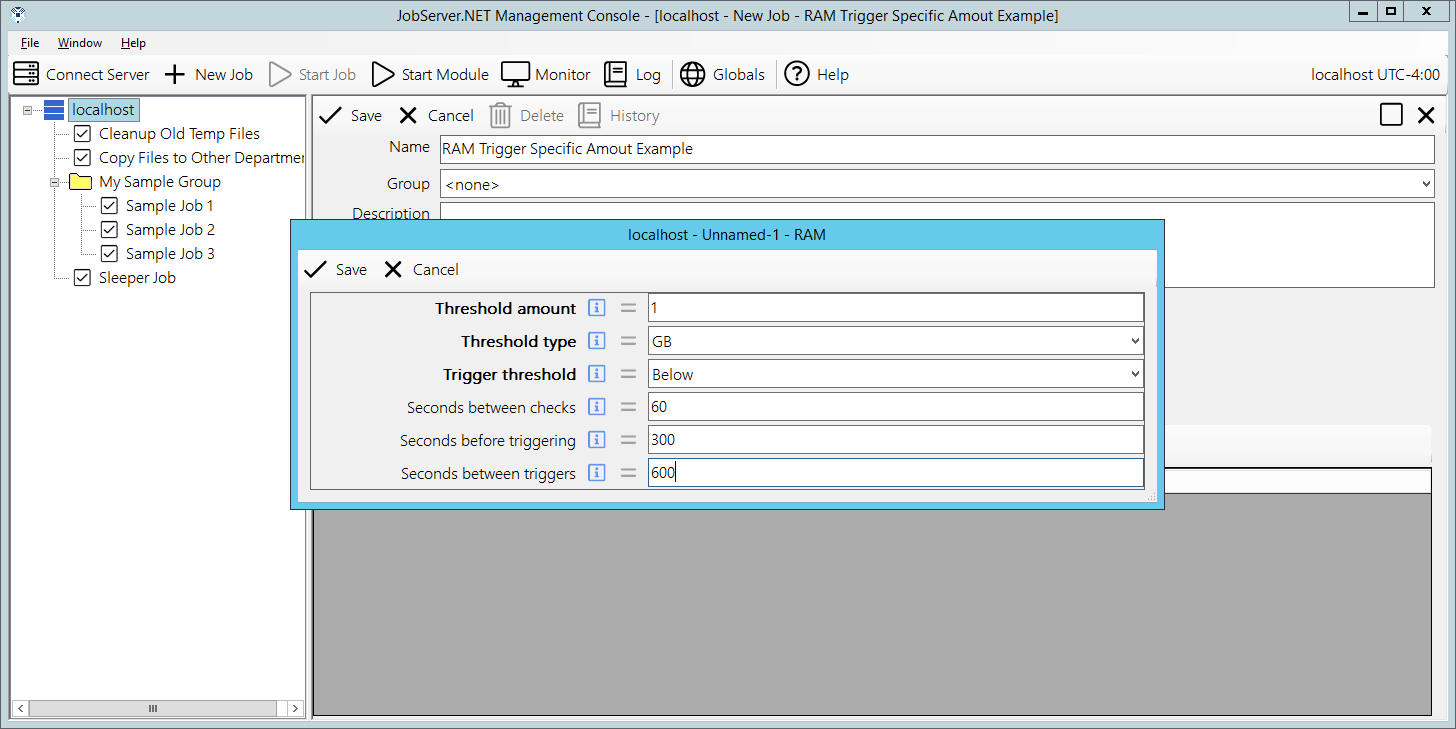
Here we can see the difference between selecting the trigger to be based on a specified value for the threshold, versus when it is based on a percentage.
WMI Trigger
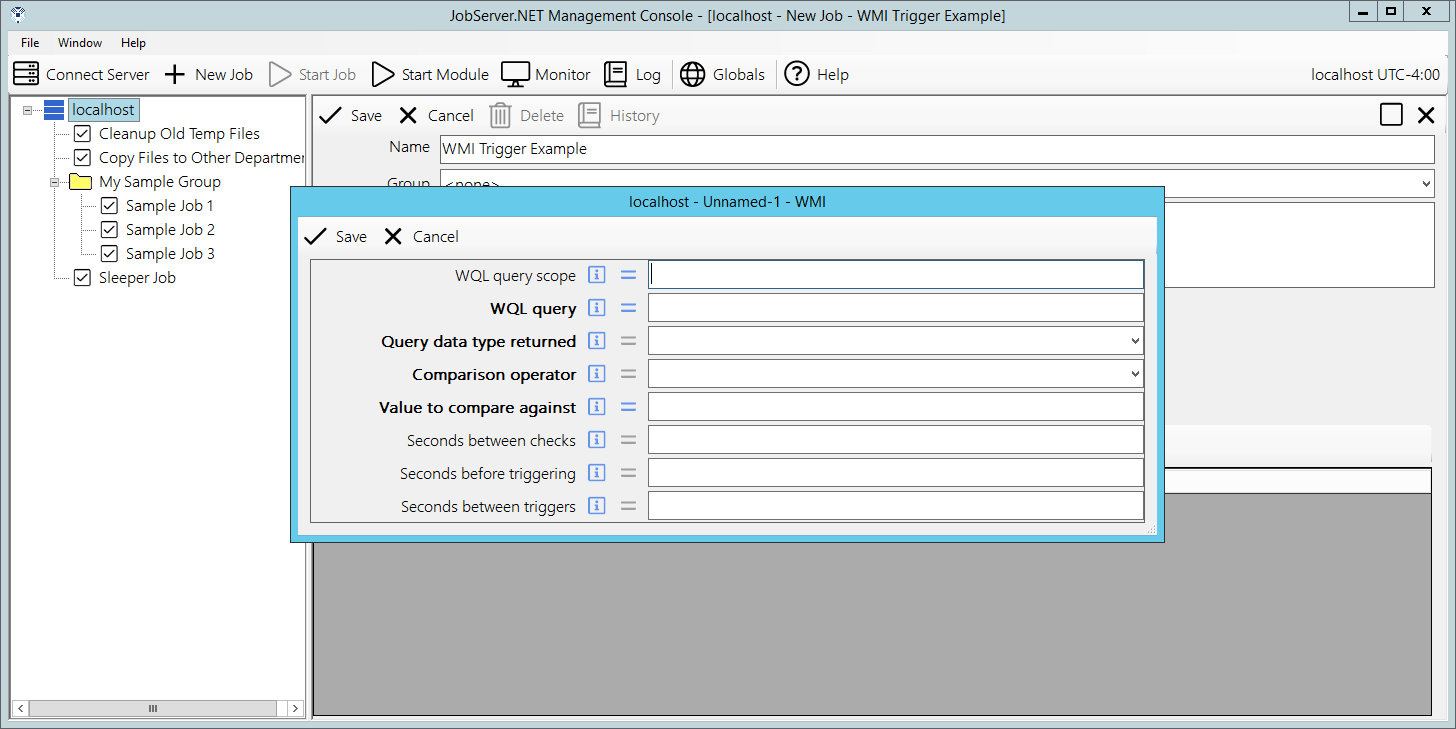
The WMI trigger can be used to start a job based on the results of the WMI Query. The WMI Query should return a single result and provides options for testing the value of the result either as a string value or as a numeric value. The first parameter WQL Query Scope should be set to the desired scope to execute the WQL query in. If unspecified, this defaults to the value of root\CIMV2 by default. The next parameter WQL Query is exactly as it sounds, the actual WQL query we want to execute for the trigger. The Query Data Type Returned parameter is used to define if we are going to treat the returned value as a plain string, or if we are going to treat it as a numeric value.
The Comparison Operator parameter is the reason why we want to define if we are treating the return value as either a string or as a numeric. Since some of the options for comparison can check for scale, this affects the result of the compare test. A numeric comparison of the number 2 would be less than the number 101. But if they are treated as string values and compared alphanumerically, the result is the opposite of what the numeric test is. Thus, you want to make sure you are using the expected type. The comparison operators can be Equals, DoesNotEqual, IsGreaterThan, IsLessThan, IsGreaterThanOrEqualTo, IsLessThanOrEqualTo. Any of these comparisons can be checked against the parameter Value To Compare Against to cause the trigger to execute the job.
The option Seconds Between Checks is a value which controls the overall granularity of how soon the trigger may respond to changes in the value of the WMI query result. The minimum or default value for this setting is 5 seconds. The option Seconds Before Triggering controls the period in which the value must continue to pass the comparison test before the trigger will respond. The parameter for Seconds Between Triggers controls how often a re-trigger of the job may occur if the value continues to pass the comparison test.