If you followed along the step-by-step in the Getting Started section above, you should now have a basic familiarity with what a job definition is. To recap, a job definition is the combination of trigger and defined steps that are executed when the trigger has detected the date/time or event that it is expecting to see. The definition consists of several default settings which are fine for most job definitions. However, you have control over many settings which allow you to refine the behavior of a running job.
The first of these is the Name field, which should be set to a concise value that tells you what the purpose of the job is. The next field is Group which we will skip over for now as that is explained in the next section. Then we have the Description field. This is completely optional but is very useful when you have numerous jobs or jobs of some complexity, as it gives you a place to document the job in detail. When you have multiple people that may be managing the jobs, this can play a critical role in making sure your other team members understand the nuances of each job.
The Trigger field is a drop-down control which allows you to choose from any of the installed triggers. The first time you pick a trigger when creating a new job definition, or change the trigger, it automatically shows you the configuration options for the chosen trigger. Otherwise, when the trigger has already been chosen, you can update the configuration options of the trigger at any time by clicking the Configure button next to the trigger. Next to configure, the selected trigger will show a text legible description of the trigger’s current configuration.

The Enabled checkbox shows if the job definition is currently disabled or enabled. When the job is disabled, it will not be executed regardless of the trigger. Jobs can also be disabled or enabled using the pop-up menu options in the navigation panel list. The Max Run Time field normally defaults to a value of zero, which means JobServer.NET will allow the job to run for as long as it attempts to. If a specific job needs to be limited to a specific amount of time, this limit can be specified here in the total number of seconds for the running job. If the max run time is exceeded, then the next field Action On Exceeding Run Time will allow you to specify the action that JobServer.NET will take when this happens. The option to Notify DevOps will use the configured Notification Settings to send a message about the job’s condition. The option to Terminate the Job will cause JobServer.NET to force the running job to be stopped. Most jobs should stop safely and will report their status in the log activity.
The next set of fields is named Notify Operator and provides a checkbox option for each of the conditions a job can end with. If you want a notification to be sent on any of these conditions, just check the box or combination of boxes you want to see a notification for. The final set of fields in this area of the job definition show some statistics on the history for this job. For new jobs, most of these will be blank of course. When jobs have run one or more times, you will see the stats will be updated to reflect what has occurred during previous job executions. Note that for jobs that have been in existence for a long time, the Average and Max run time statistics are based on the recorded log activity JobServer.NET has on hand. Depending on the frequency and amount of log activity all the jobs on a machine generate, the logs will automatically be pruned over time. Therefore, these values reflect the statistics for the log data the system has on hand.

The bottom section of the job definition is the Step Editor. Each step consists of one module that may perform one or more actions with the parameters passed into them. Steps are performed in sequence and can be chained together with data or parameter values that pass from one to the next. The toolbar at the top of the step editor allows you to create and modify all the steps. The New and Edit step buttons should be self-explanatory with the caveat that new steps are always added to the bottom of the list. Double-clicking on a step in the grid is the same as clicking edit for that step. Other than the New button, all the other buttons expect to work on a specific step in the grid. Thus, to use any of the others, first make sure your desired step is highlighted in the grid before selecting the button. The Duplicate button will make a new copy of the currently selected step. The Delete button will permanently remove a step from the job definition. Sometimes you might not want a specific step to be executed, but maybe you do not want to delete it, so you can use the Enabled button to either disable or enable a specific step. And finally, the Move Up and Move Down buttons allow you to alter the order of the steps by moving the currently selected step up or down in the list.

While a job definition is being edited, it is locked from modification from any other sources. Therefore, it is recommended to not leave your job definition editor open for longer than needed in order to make any changes to it. This also means that if someone else has the manager application installed and has a job definition open, you cannot edit the same job definition until they either close (and optionally save) the job definition.
Managing Related Jobs Using Groups
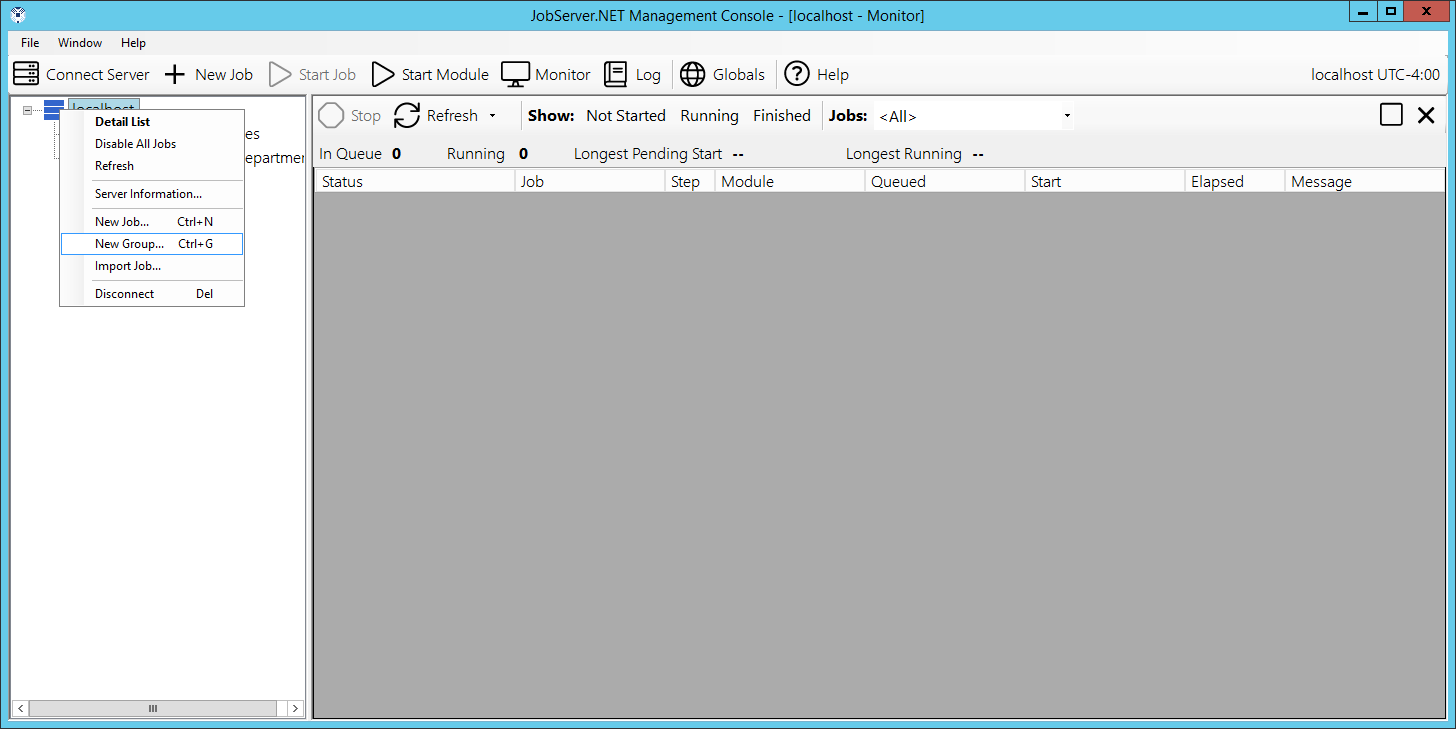
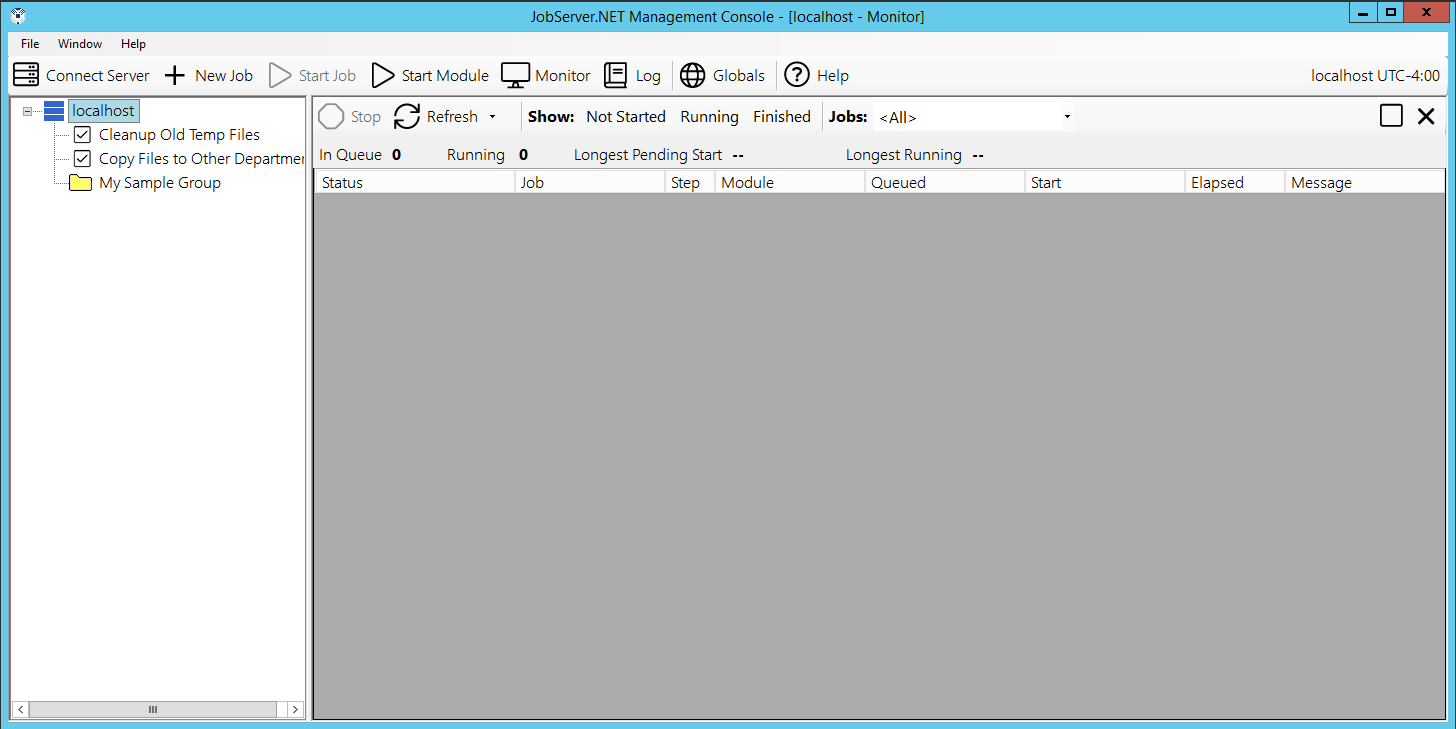
The obvious way to manage the job definitions on your server is to give them good and accurate names. Although over time, as you begin to create more jobs and find more ways for JobServer.NET to automate and enable various processes, it may become necessary to take advantage of another way to manage related jobs. You can use the Groups feature to organize all the jobs that have some common element. Groups appear as folders in the navigation panel view in the manager application. To create your first group, right click on the server and select New Group from the pop-up menu. Type in a name for the group and you will see it added to the list under the server.
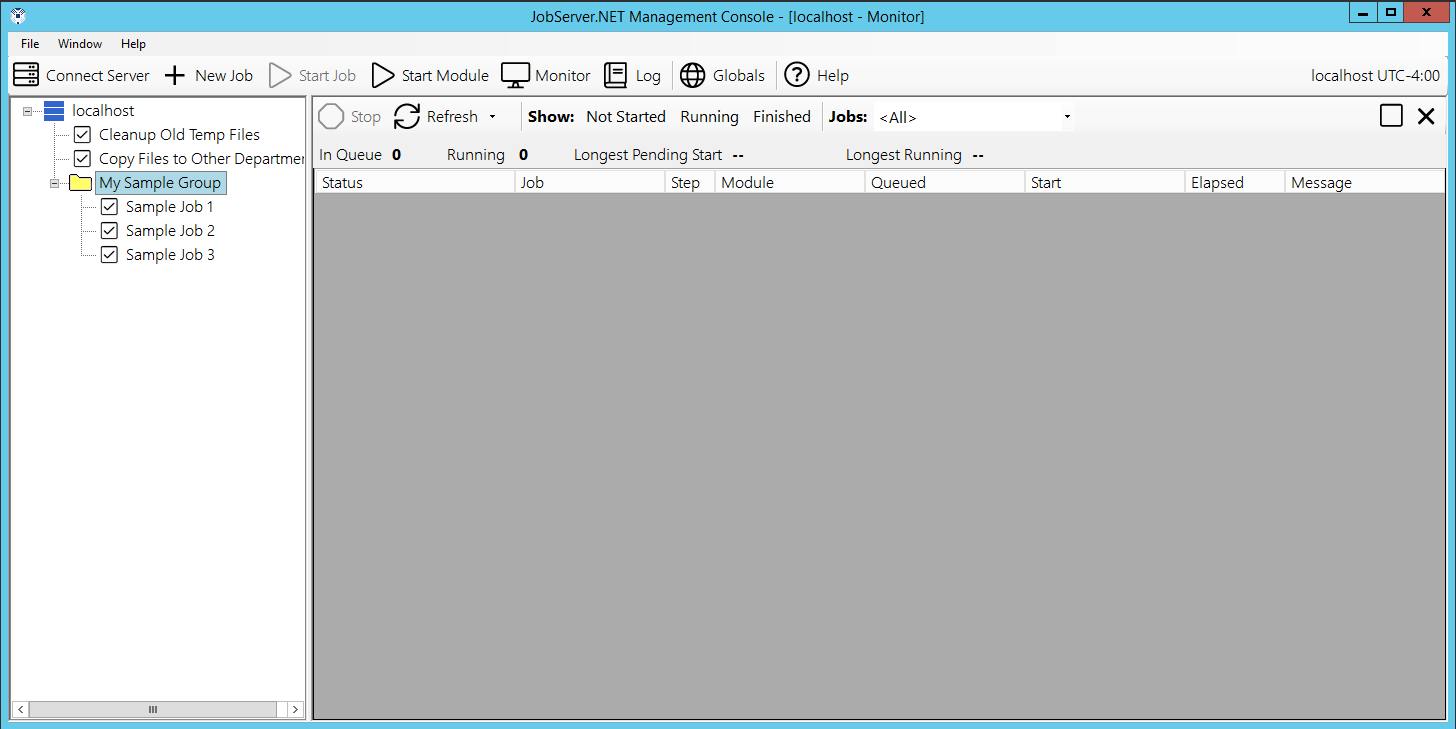
Once you have created a group, you can now create new job definitions in that group by right-clicking on the folder icon for the group and selecting New Job from the pop-up menu. You can also drag and drop job definitions in the server list to add or remove them from the group. Additionally, now that you have at least one group defined, you will now see that you can also move a job definition you are editing by selecting or changing the group option from the list of available groups.
Group membership does not affect any of the operating conditions or parameters of the job. So, you can add, rename, or delete a group at any time without any effect to the running or pending job. If you attempt to delete a group that has existing job definitions in it, you are given the option to move the definitions out of the group before deleting it, or to delete all the definitions in it along with the group.
Exporting Jobs
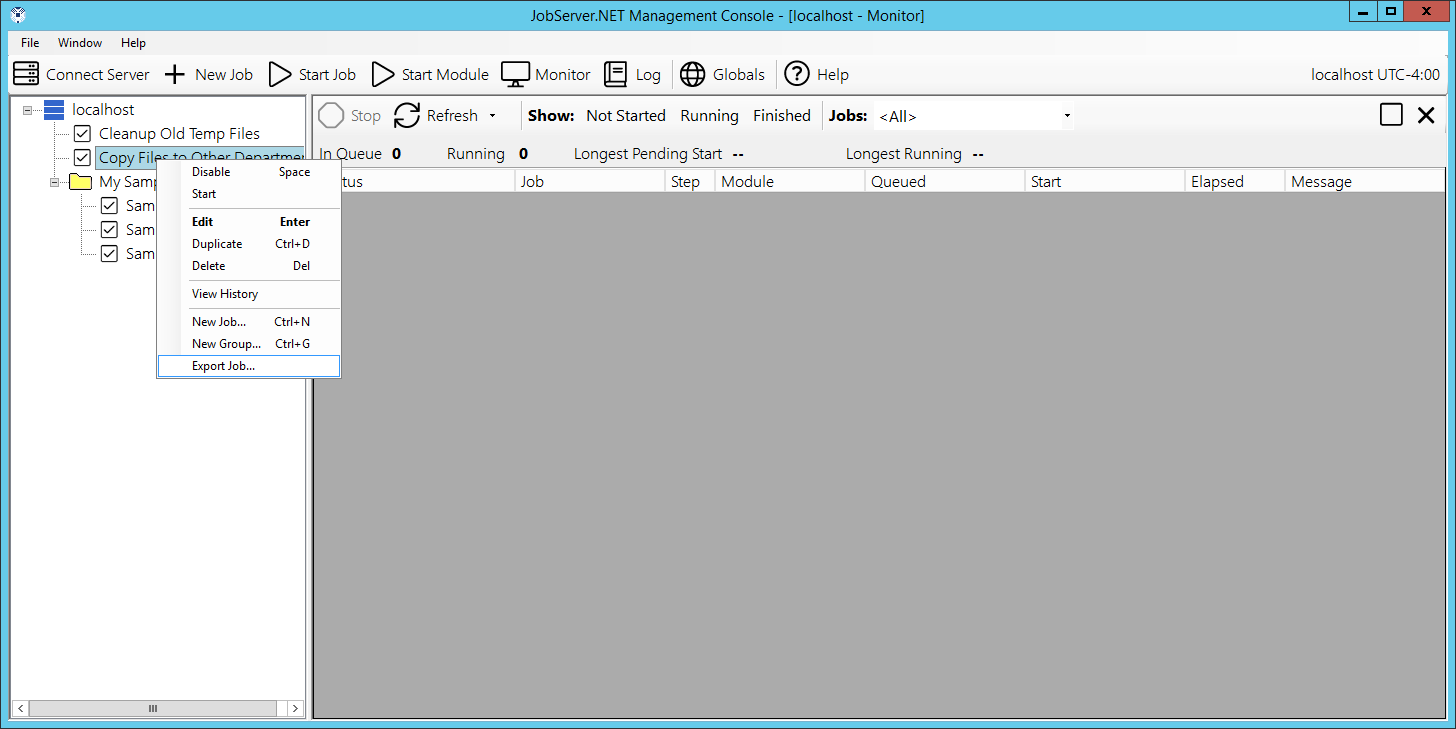
A job definition can be exported to an external file. This export option can be used for a variety of purposes. One reason you might want to export a job is to preserve a job definition before making any extensive changes to it. Or, you can export the definition and then copy the exported job definition file (.job) to another server to import, thus replicating the job from one server to another. To export a single job definition, just right-click on the job in the server list and select the Export Job option.
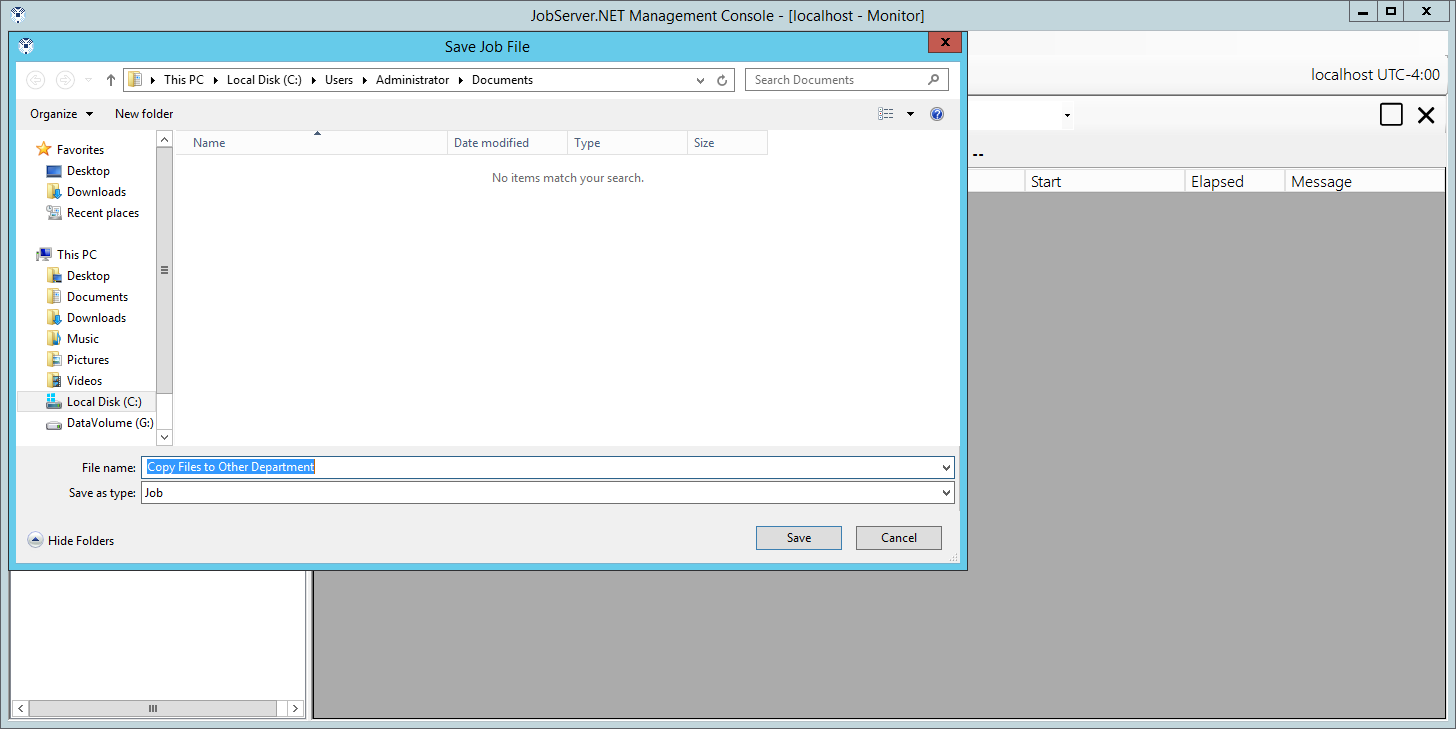
It will default to the same name as the job definition, but you can change it if desired before clicking the save option.
Importing Jobs
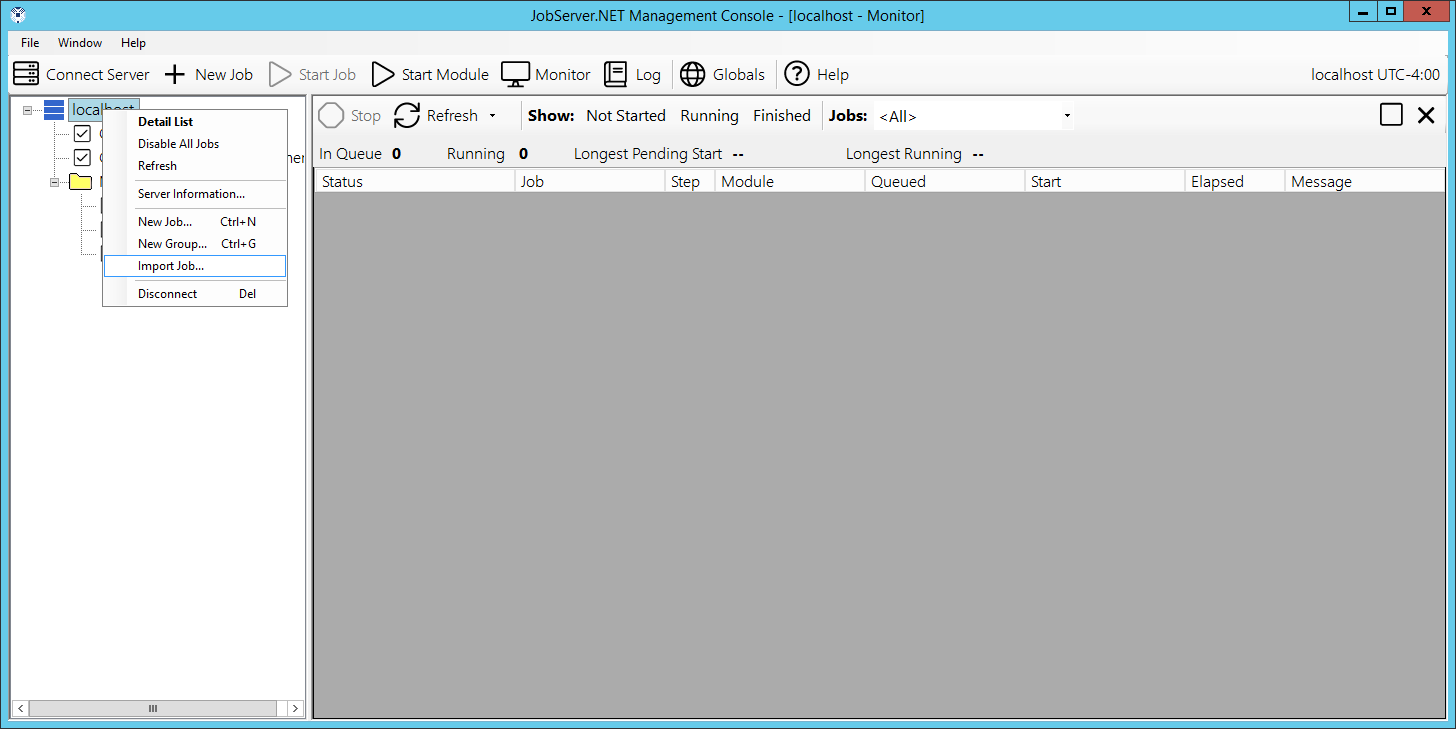
Importing a job definition is as simple as exporting. To import a job to the JobServer, right-click on the server if you want to import the job to the general list of job definitions and pick the Import Job option. If you want to import the job to a specific group, then right-click on the group folder before selecting the import option.
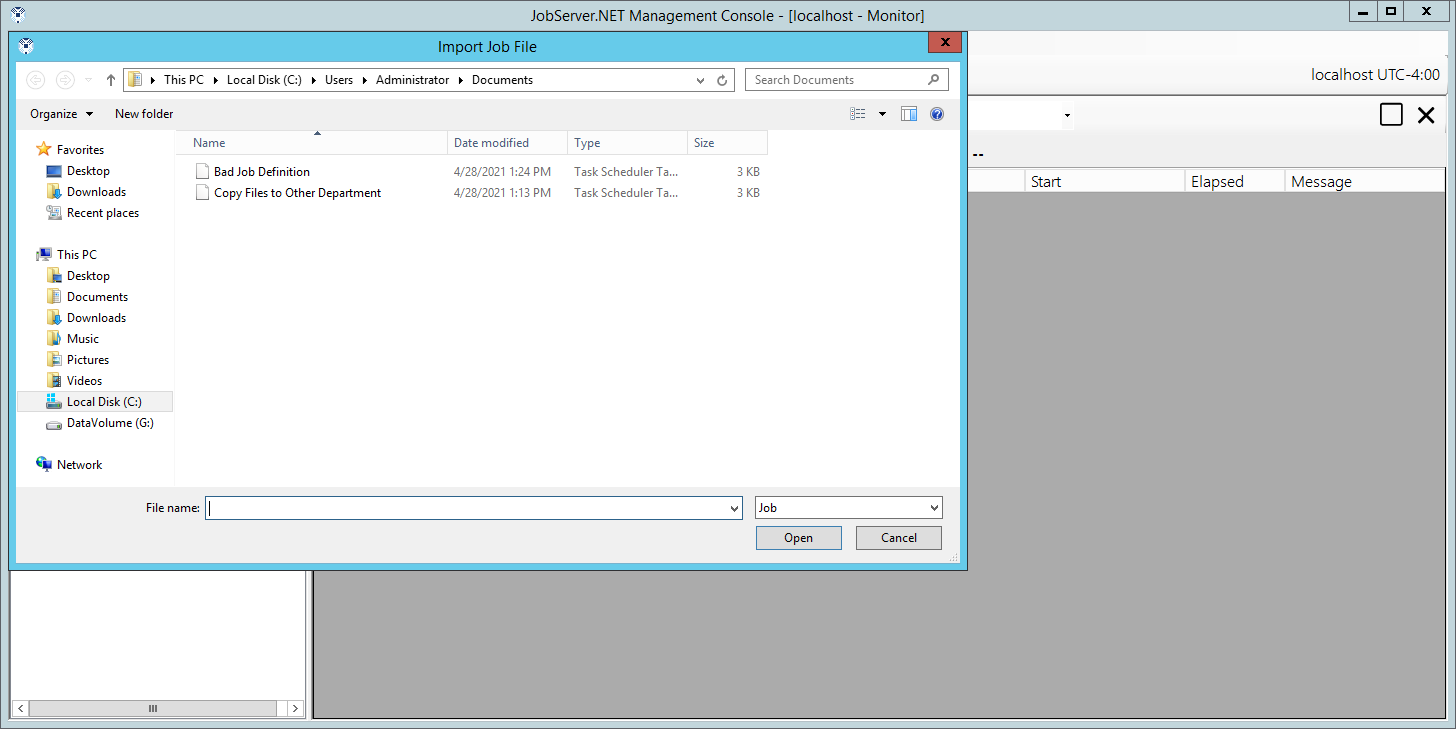
The first step in the import process will provide you with a local file dialog to allow you to choose a job definition that you would like to import.
Once you import a job definition, you should open the job definition and make certain there are no detected problems with it. If a problem is detected with a job, you should see any error conditions that need to be resolved with any triggers or modules before the job will be able to become active. Possible problems with an imported job could be that the parameter name for a module has changed or a new required parameter has been added. In cases like this, you would just need to check the list of errors shown and fix the parameter(s) that are showing an error condition. If there is a problem importing the job definition, it will normally be detected immediately and will show one or more error messages from the import process.
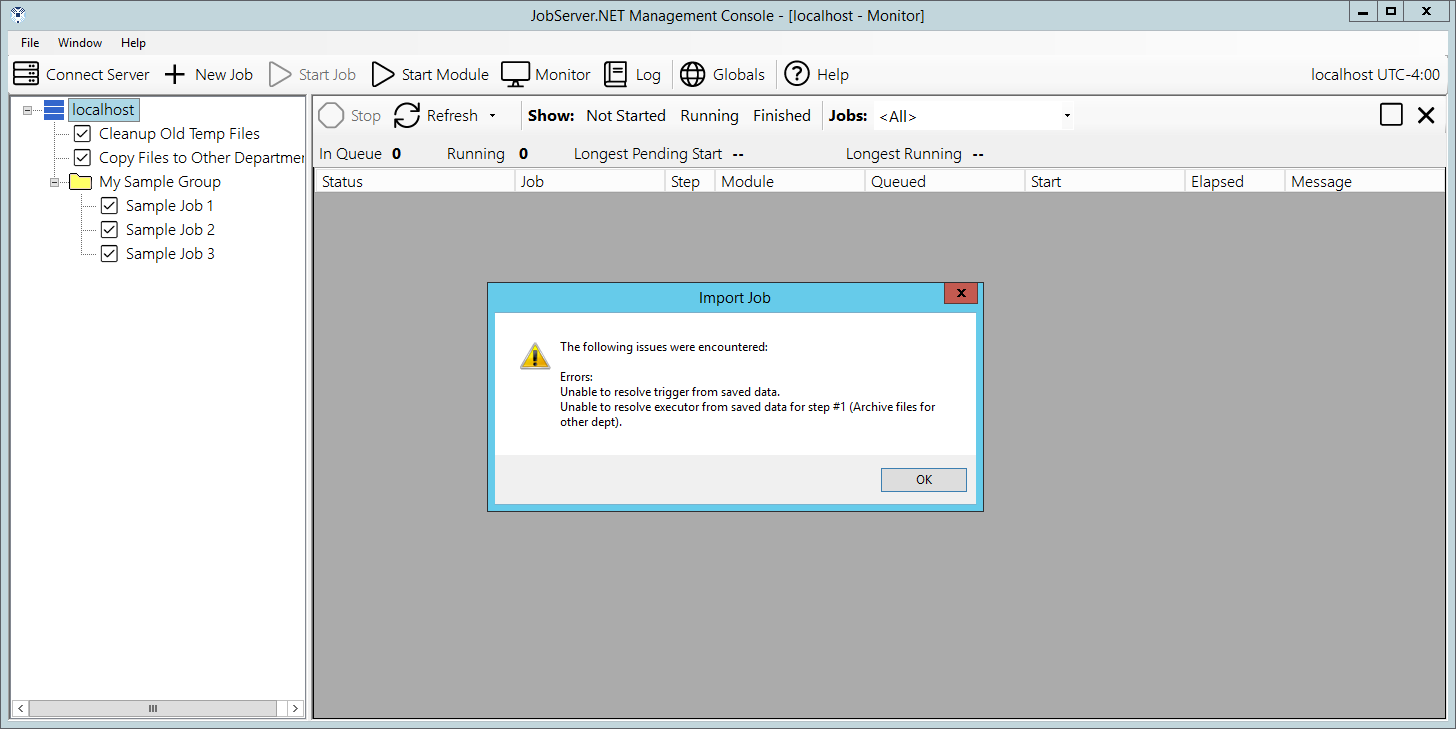
In cases when a JobServer is being re-installed on a new server, or existing job definitions are imported from a different JobServer, it is possible that the server where the definition is being imported does not have a module installed that existed on the previous server. Thus when running multiple JobServers, you would want to make sure you have all the same modules installed on any servers you may be importing/exporting the same job definitions to. When an import fails on a JobServer which does not have the module used in the imported job definition, an import error will occur which looks like the following screen. Note how the module name is displayed with a “not found” prefix in the steps.
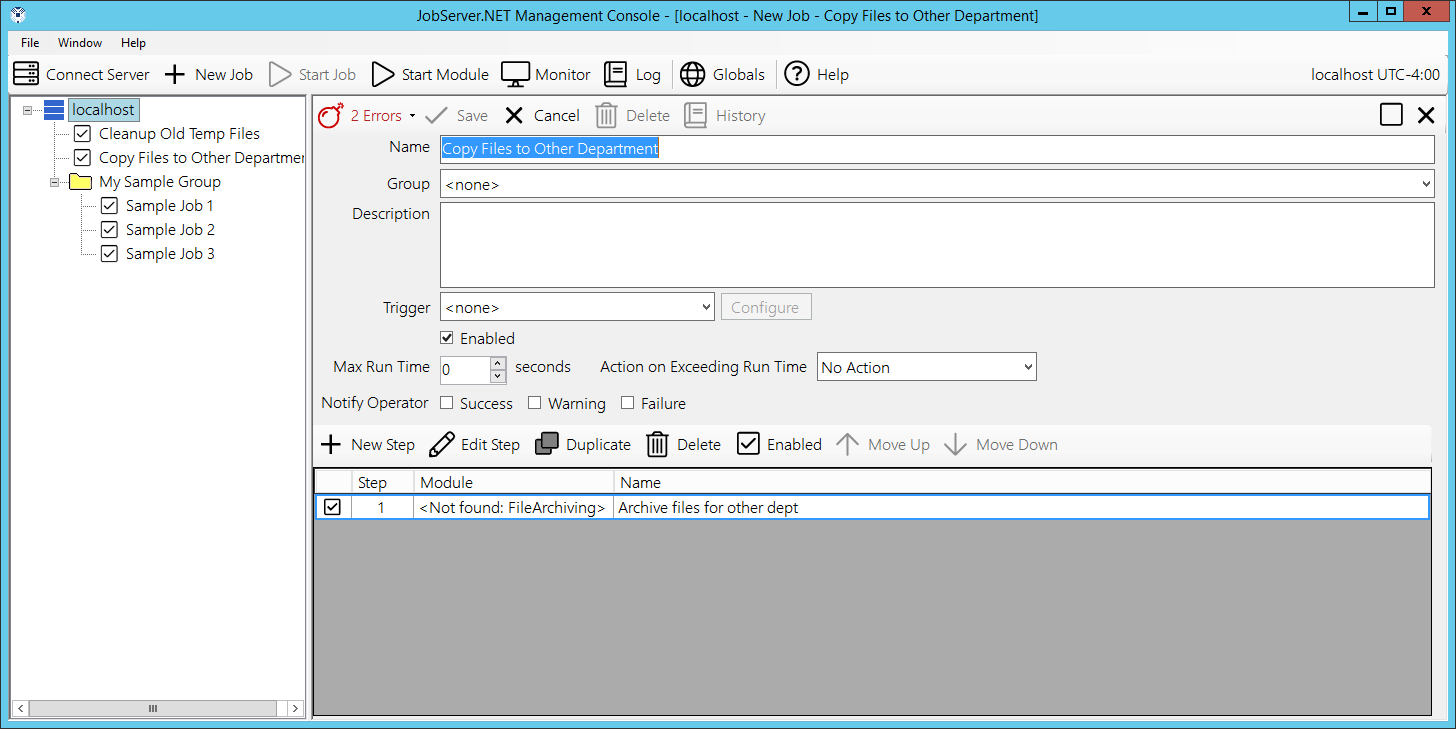
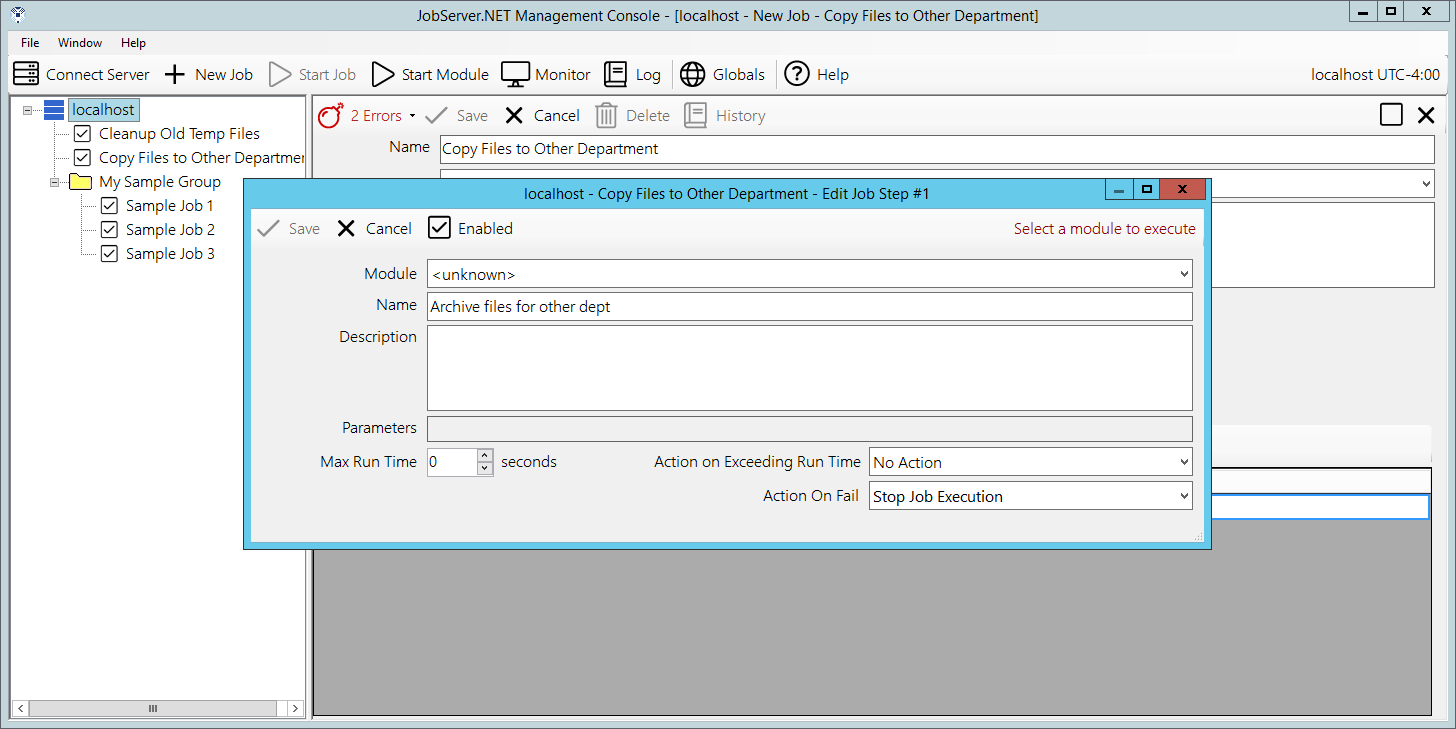
When such a condition occurs, most likely you need to cancel editing the imported job, and install the missing module(s) before proceeding any further. Otherwise if this is due to an old module that is no longer needed, or has been replaced by one of more newer modules, the job definition will simply need to be edited and updated as appropriate, or removed and replaced with the new modules and parameters. If you edit the step showing a “not found” module, the module field will show the value of “unknown” where the module name would normally be as illustrated in the following example.