All of the included triggers and modules in JobServer.NET already provide a variety of useful functionality. That existing functionality can be built on even more by implementing your own custom modules. The creation and installation of a custom module allows you to include your module as a normal step in any new or existing jobs. It can be combined with any of the existing modules, as well as a part of a single job or even as parts of multiple steps using multiple custom modules of your own.
Requirements for Creating Custom Modules
The minimum requirements for a development machine to build custom JobServer.NET modules on is similar to the baseline requirements of JobServer itself, as listed in prior sections, along with the addition of a supported version of Visual Studio.
To create and build a custom module for JobServer.NET, you need to use a supported version of Visual Studio that supports targeting .NET Framework 4.8 and later. This means at least Visual Studio 2015 and newer, or versions back to Visual Studio 2010 with the appropriate updates and upgrades to the .NET Framework installed.
Once you have that, the only other development tool needed is the freely available Visual Studio templates for JobServer.NET or the JobServer.NET interface DLLs which are available via NuGet.
Creating a Custom Module with a Visual Studio Project
A custom module is implemented as a .NET Class Library. Thus, a module does not have a user interface of its own; it relies on the functionality built into JobServer.NET for creating its user interface. This is also due to the fact that the code in your module runs without an interactive user context. This is because it is run from within a Windows service. Therefore, it is important to keep in mind that there are certain things you cannot do when running in such a service that you would for desktop style applications. In this section, we will take an overall look at how to create your own module.
Creating a New Custom Module
To start, launch Visual Studio and pick the option to Create a New Project. Select the project template for Class Library (.NET Framework). Pick the name and location for your project. For our example we are going to name it “MyCaseConverter”. The selected project framework should be .NET Framework 4.8. Rename the default empty “Class1.cs” to something useful. For our example we are going to rename it to “CaseConverter.cs”.
The first step to making this a JobServer module is to add the interface references by going to Manage NuGet Packages for the project. Select the Browse tab and search for JobServer.NET. You will see it listed as XCENT.JobServer.Plugin. Just select that and click the Install option in the NuGet manger window.
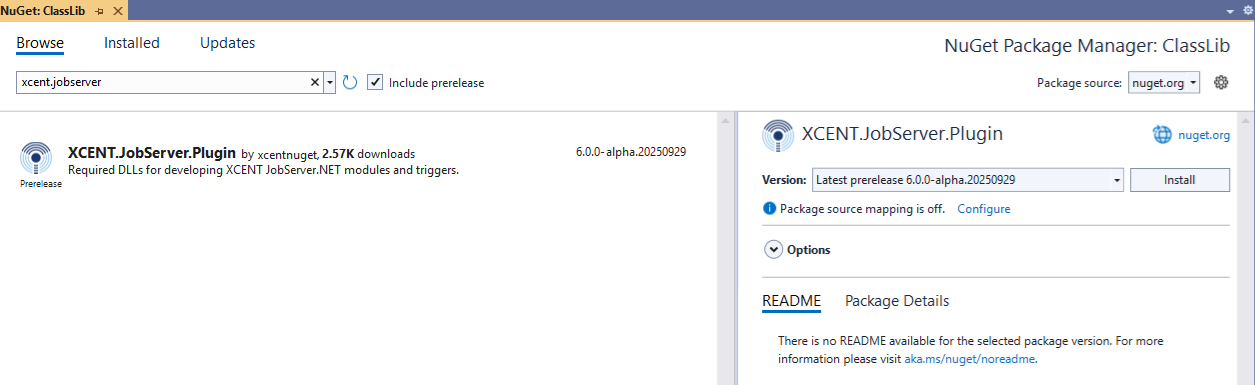
Once installed, add using statements for XCENT.JobServer.Abstract and XCENT.JobServer.Plugin to your CaseConverter class. Then modify the declaration for the CaseConverter class so that it derives from ModuleBase. Once you do that, you will need to add the following lines to the class.
    public override string Description { get { return "My Case Converter"; } }
    public override string InfoURL { get { return string.Empty; } }

    [ParamDef(Caption: "A list of files to convert", ModuleParameterDirection: ModuleParameterDirection.In, ParameterOptions: ParameterOptions.Required)]
    public List<string> FileSource { get; set; }

    // The Guid in Guid.Parse should be a unique value that identifies your module. Each custom module should have its own Guid. The one shown below (45AF5DEF...) is just an example. You can generate a new Guid value using Visual Studio or online tools for generating Guids.
    public CaseConverter() : base("MyCaseConverter", "MyCustomModules", "MyCaseConverter", null, Guid.Parse("45AF5DEF-B8D8-4ACC-8582-11E0CB40F79D")) {
    }

    public override ModuleRunResult OnRun() {
        return new ModuleRunResult() { Outcome = ExecutionOutcome.Success };
    }
This is the minimum you need to frame out your first custom module. When you use the installer for JobServer.NET, one of the installation options is to install a template for Visual Studio. If you choose to install the template for Visual Studio, you can save some of the steps above as it will create this overall structure for you on new JobServer plugin projects. Note, plugins refer to the (API) interface for both custom Modules and Triggers. However, the current release is only supporting custom modules at the current time.
At this point, there is no code in here that does anything useful. If you built this and installed it as is, it would show up in JobServer and would appear to put on the act of doing something, but it really is getting a whole bunch of nothing done so far. So, what is the basic structure we have here set up to do? This is going to be a module that takes a single input parameter and is going to expect that to be a single file or list of files that the module is going to process. To do something useful, we just add some code to the OnRun method. So, we will inject the following code into the top of this method. This code simply renames all the files it is provided to all lowercase filenames.
In the above code, notice that the constructor for the class passes a few important parameters back to ModuleBase. The first one is the name that your module will show up in the JobServer.NET user interface as. The second is the category for your module. In current versions of JobServer, this shows up as a prefix on your module name, and this one would show up as [MyCustomModules] MyCaseConverter. The category should be used to make sure your module names are unique and do not conflict with any others. We recommend that for any real modules you create, use your organization name, or org name and department as a way to both name and organize your own modules.
    try {
        foreach (string file in FileSource) {
            if (File.Exists(file)) {
                FileInfo fi = new FileInfo(file);
                if (fi.Name != fi.Name.ToLower()) {
                    this.SetMessage("Processing file:" + fi.Name);
                    string newname = Path.Combine(fi.DirectoryName, fi.Name.ToLower());
                    File.Move(file, newname);
                }
            }
        }
    }
    catch (Exception ex) {
        this.WriteLogEntry(LogEntryLevel.Error, "Exception in module", ex.ToString());
        return new ModuleRunResult() { Outcome = ExecutionOutcome.Failure };
    }
We now see a simple implementation of processing the input files and returning a valid status based on success or failure of the processing. This should now build correctly and if so, provides you with a DLL that can be installed as a custom module.
Modifying an Existing Assembly to Become a Custom Module
If you have existing code that you would like to build as a custom module, and the functional part of your code is already in the format of a .NET Class Assembly, then setting it up as a module should be not much different than creating the example in the previous section. All you should need to do is add the XCENT.JobServer.Plugin to your project, create a class to act as a wrapper to implement the JobServer Plugin interface as was done in the above example. Set up any values you want to feed into your code as parameters and in the OnRun method for your wrapper class, just call your existing code. Of course, this is a little simplified, as at a minimum you will likely want to review the various supported parameter types and the various options you can use with each. We cover these in more detail in the following sections.
Installing a Custom Module in JobServer.NET
Once you have written your first custom module and built it, you will need to install it for JobServer.NET to be able to use it in your jobs. Currently, this is a simple manual process that does require for you to have administrative access to the folder your JobServer.NET application is installed to. Typically, the default installation path for JobServer modules will be something like “C:\Program Files\XCENT\JobServer.NET\Modules”. Once you locate this folder, we recommend creating a folder within this using the name of your organization. If you might have a number of custom modules, then another recommendation would be to even add an additional sub-folder under your organizational folder with the department or process name that is suited for you modules. JobServer.NET will automatically search through all folders in the Modules branch so you are able to create any organizational structure you might want for managing and deploying a variety of custom modules.
When you have decided on your folder naming convention, all you need to do to deploy your custom module is to copy all the compiled files (DLLs, etc.) from the Visual Studio output folder to this folder. Once the files are copied to here, JobServer.NET should detect that they have been added and you should now be able to select your custom module just like if it was any of the other installed modules.
Finding Out More on Creating Custom Modules
In the preceding sections, we have outlined the very basics of getting started creating your own custom modules for use with JobServer.NET. While this does provide you with the essentials you need to create a functional custom module, we do provide more detailed information in various other articles along with some sample implementation and source code. Please see the following online article for more details: https://kb.jobserver.net/Q100030
Introducing FileGroups When Using FileLists
When implementing a custom module, you will notice that there are quite a few modules which accept a list of files as an input parameter usually with the name FileSource and might provide output of processed files as FileList or other parameter names. We refer to all of these type of parameters as FileLists as a general name. When used as an input parameter, the list of files can be supplied as a simple list of files including their fully qualified paths as shown in this example.
C:\MyApplicationData\Incoming\Orders_2021-01-22_09-12-32.json
C:\MyApplicationData\Incoming\Orders_2021-01-22_09-46-01.json
C:\MyApplicationData\Incoming\Orders_2021-01-22_10-33-18.json
C:\MyApplicationData\Incoming\Orders_2021-01-22_11-01-46.json
This would be accepted as a valid list of files that the module can process. However, if you look at the output from many of the included modules which show a list of files, and most significantly the FileList output parameter from the [Files] Find module, you will notice the data looks a little different from this simple format. Internally all the included modules support a more structured definition of this data which allows certain modules to have additional functionality. This type of structured data is known as a FileGroup. This structured data is in a Json data format in which the data describes itself. It does this by including identifying tags directly in the data stream. For example, if the above list of files had come as a result of output from a [Files] Find module, the data would instead look like this example.
{
   "DataType":"FileGroups",
   "DataVersion":"1.0",
   "BasePath":"C:\MyApplicationData",
   "Parser":"Unstructured",
   "Groups":[
      {
         "Path":"C:\MyApplicationData\Incoming",
         "Files":[
            "C:\MyApplicationData\Incoming\Orders_2021-01-22_09-12-32.json",
            "C:\MyApplicationData\Incoming\Orders_2021-01-22_09-46-01.json",
            "C:\MyApplicationData\Incoming\Orders_2021-01-22_10-33-18.json",
            "C:\MyApplicationData\Incoming\Orders_2021-01-22_11-01-46.json"
         ]
      },
   ]
}
2026-02-12 TODO - DPM Rewrite below 2 paragraphs to reference FileGroup structure instead of the old tags
In this example, you can see that the data starts with an identifying tag [FILEGROUP] which tells us what kind of information is in this stream of data. Then we see this is followed by a series of records, each with a tag preceding very similar looking data. Here we see right in the first record, there is some additional information that wasn’t in the previous example. The first record uses the [D] tag which denotes that this is the folder all the following records were located within. Thus, in this example, the data is telling us the find module started looking for files in this folder. This is usually not relevant for many modules that just process individual files, but it has benefits for modules that have options for working with the hierarchy of folders and the set of files contained within it. You can find out more detail about how this can be used in a knowledgebase article linked below.
Notice that the rest of the data looks nearly identical to the original example except that each record starts with the [F] tag to denote the record is a file. The number of files is not limited and can continue for as long as needed. We recommend using the same FileGroup structure for supporting lists of files and of course you will need to if you want to use the output of the included modules in your own custom modules. More details about the FileGroup structure and how it is beneficial to various use cases can be found at the following article.