This section contains information on configuration of some of the options in JobServer.NET that are not part of the basic or default settings when the application is first installed.
Authentication Options
When JobServer.NET is installed, it uses the built-in Windows Authentication to define who can login to the management application. Because of this, the behavior changes slightly based on whether or not the machine the JobServer service is installed on is a standalone machine, or if it is a member of an Active Directory network. In either of these cases, by default you would need to use an account with administrator account level privileges to login to the manager application.
There may be situation where you want to use different accounts for logging into the management application that are not members of the local or an Active Directory administrators group. When you want to allow an account to have the ability to login to the management application, you would need to create a new group with a specific name called JobServer_Edit and then assign the accounts that should have access, as members of this new group. For a stand-alone machine that is not part of Active Directory, you can just create this group on the local machine and assign the local accounts that should have access to it. For a machine that is a member of an Active Directory domain, then you create the group in the domain in which you want to assign the members from. Then add the individual accounts in the domain to the new group domain.
Management Port
When JobServer.NET is installed, it defaults to using port 7901 as its management port on the server running the service. Although we highly suggest not changing the port used, it is possible to do so if it is absolutely required. First, in the folder the application is installed in, there is a plain text configuration file named JobServer.exe.config. If you open this file in a plain text editor, if you find the key entry for WebApiPort, you will see that its current value is the default of 7901. Change the value to a new unused port on the server and save the file. Important note before saving be absolutely certain you are using a plain text editor!
Next, since the management application uses an encrypted connection to communicate with the service, the service needs the proper configuration and permissions for setting up the secure channel. To do this, you must run a command line command with the proper parameters. First, start by opening an elevated command line console by clicking Start, type cmd.exe into the search bar, right-click on the command prompt icon and select the Run as Administrator option from the menu. This will open an elevated command prompt window which you can now type in the following line, changing the port number, shown as ####, to the new port number and hit enter.
netsh.exe http add sslcert ipport=0.0.0.0:#### appid={12345678-db90-4b66-8b01-88f7af2e36bf} certhash=DEF23F25EFC721D4FD892CACC4AD6FF015F71494
The entry above is all one line when typing it in, so do not hit enter until the whole thing is typed in. Again, be sure to change the pound-sign (hash-mark / octothorpe) characters to your desired new port. If for some reason you make a mistake and create an entry for a wrong port value, you should remove the errant entry by using the following command.
netsh.exe http delete sslcert 0.0.0.0:####
This will remove a port assignment if it is no longer needed or was created accidentally by mistyping the first command.
Once this is done, you will need to restart the JobServer.NET service in order to run it on the new port. First, be sure to close any open manager applications which may be connected to the service. Next, in the machines Services applet, locate the XCENT JobServer.NET service and right-click on it, then select the Restart option. Once the service is restarted, you should now be able to open the manager application, change the port number to the new port, and then can connect to the JobServer.NET service using the alternate port number.
Service Account
When JobServer.NET is installed, it defaults to creating the service to run under the machine’s LocalSystem account. For machines that are installed as standalone servers, then this means that the JobServer will only be able to access any of the direct resources located on that machine such as locally attached disks and filesystems. The exceptions would be when using any modules where the module must be given credentials to access a remote resource, such as an FTP server for any of the FTP based modules.
For machines that are members of an Active Directory network, the default installation of the service running under the machine’s LocalSystem account means that the JobServer is restricted to direct access to resource on the installed machine only. To allow any of the modules in the job steps to access network resources, you would need to change the account that JobServer uses to allow and control access to the network resources. When reviewing access to domain network resources, we are specifically referring to endpoints such as UNC paths to a share and folder on a specific network machine, or to a DFS namespace roots and folders on the network.
The easiest method to opening up network resources to JobServer.NET and any of the configured job definitions is by changing the account that the JobServer.NET service uses to an account on the domain with administrator rights. This gives the service the most access to published network resources in a default installation. This may be fine for small installations and where the server(s) the JobServer.NET service is running on a secure machine. When we refer to a secure machine in this sense, it means a machine that has both good strong user credentials for your administrative (and all) accounts and logins. And in addition, also has good strong physical security in that nobody has any casual access to the machine.
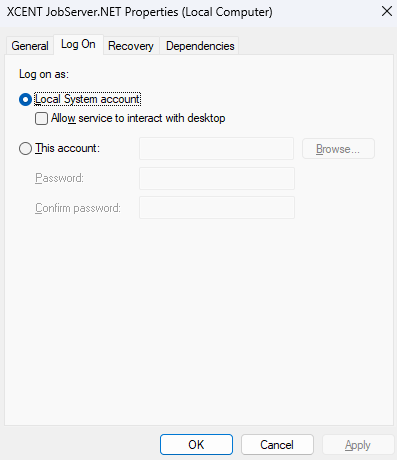
Whenever possible, it is best to use a more fine-grained approach to securing critical machines on your network and when used with JobServer.NET. It is certainly more work to set up and configure but grants you the ability to precisely control the access that any of the installed modules on a JobServer installation has access to across your network. The following steps outline how to set up a single installation of JobServer.NET on one server in your Active Directory domain, but this can be scaled out to multiple servers as needed.
We will use the fictional name “MyDomain” as the name of your Active Directory domain in this example. Certainly, you want to substitute your own domain for this in the examples. We mention this since we will also use a few other example names that are used to illustrate the relationship between the various items, and you are certainly able to name them as you see fit for your network or naming conventions. The specific items this applies to is an account to create in the domain named JobServerService and a local group you create on each machine where JobServer is installed called JobServerServiceGroup. Now let us look at how we would configure this for a more constrained approach.
First you create the user account you want the JobServer.NET service to run under in your domain. Under your Active Directory Users add the new account we will creatively call JobServerService under your domain “MyDomain”. At this point, if you already know what shares or other UNC paths you need to grant access permissions for the account, go ahead and add those to the account now. Thus, if you have a folder on your network where you will have modules sending and receiving files from an external FTP endpoint, you might have some sub-folders you use for various parts of the process, but the top-level folder containing them such as \\MyServer\Vendors\AcmeCo you would add Full Access permissions to account MyDomain\JobServerService to it for all the sub-folders to be accessible to the JobServer instance. Then you would repeat this for any other specific locations on your network where the JobServer will need to have file system access.
Now onto the steps to configuring the service to run under the domain account for your member server. The first part is to open Computer Management on the JobServer machine and under Local Users and Groups, you want to add a new group call JobServerServiceGroup. Once that is created, you can now add the network user MyDomain\JobServerService to this new group. After this is complete, you want to open the Local Security Policy app on the JobServer machine and under Local Policies, find and select the User Rights Assignment folder. When you have done this, you should now be able to locate and open the setting for Log on as a service. There will be entries here already, and we are not going to touch these. We just want to use the Add User or Group button to allow us to add the local group you created named JobServerServiceGroup here. These steps so far are just getting the account able to be used for running the service, now with that completed, we can move onto the next part.
The final part of configuring the machine to run JobServer.NET under the Active Directory domain account is to give it the necessary local permissions on the machine. There are two parts to this, the file system level permissions, and the network access permissions. First, you should already have JobServer installed on this machine. If you used the default options, it should use the following local paths on your boot volume. If you customized your installation, you would need to identify your customized paths to each of these. Locate the path for application data, which defaults to C:\ProgramData\XCENT and grant Full Permissions for this folder to the local JobServerServiceGroup. Next will be the path that the application is installed in, which defaults to C:\Program Files\XCENT and grant Full Permissions for this folder to the local JobServerServiceGroup.
With the local file system level permissions completed, now we just have to set up the network access permissions for the service. To do this, you will need to use the net shell (netsh.exe) command in an elevated command prompt. Of course, this is done by right clicking on the cmd.exe command line icon and selecting the Run As Administrator option from the pop-up menu. When the elevated command prompt opens, you will just need to enter the following command.
netsh http add urlacl url=https://*:7901/ user=JobServerServiceGroup
When you have completed these steps, you are now able to change the LogOn credentials for the service to the domain account and will be able to restart the JobServer.NET service under the new login with the more restrictive control. When you have successfully completed that, you will just need to remember in the future that as you add or change any job definitions, that if it involves changing or adding any references to Active Directory resources, you will just need to include adding or changing the permissions for the domain account also.
For additional details on configuration of Active Directory network accounts with JobServer, see the following article.